
Team and roles
Here you invite people to an organization, give each a role and change it later.
Roles#
A person has one role in an organization. It applies to all of its projects.
| Role | Can do |
|---|---|
| Owner | Everything. The person who created the organization. |
| Admin | Manage members and projects, edit and publish. |
| Publisher | Edit documents and publish them, and publish the theme. |
| Editor | Edit documents and upload images. Cannot publish documents or the theme. |
| Viewer | See projects and documents. Cannot change anything. |
In more detail:
| Viewer | Editor | Publisher | Admin | Owner | |
|---|---|---|---|---|---|
| See documents and open the prototype | yes | yes | yes | yes | yes |
| Create and edit documents, upload images | — | yes | yes | yes | yes |
| Publish documents and the theme | — | — | yes | yes | yes |
| Create projects, change project settings and the data dictionary | — | — | — | yes | yes |
| Invite and remove people, change roles | — | — | — | yes | yes |
Your own role is shown under your email at the bottom of the admin's menu and above the editor: Can publish, Can edit, not publish or View only.
Invite a person#
Owners and admins invite people. An invitation is a link for one person.
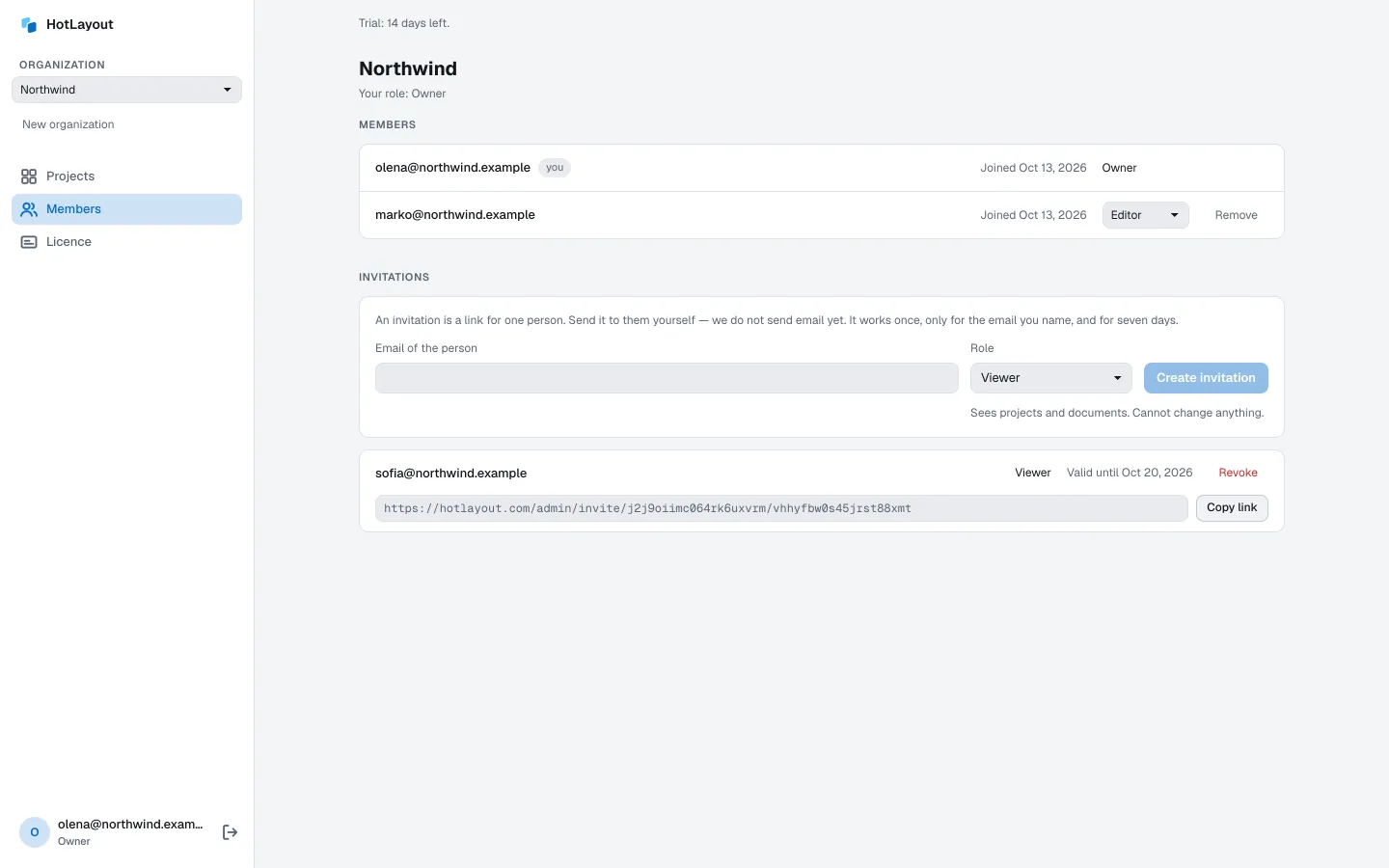
- In the admin, open Members.
- Under Invitations, enter the Email of the person and choose the Role.
- Press Create invitation.
- Press Copy link and send the link to the person yourself — by email or in a messenger. HotLayout does not send it.
The link works only for the email you named, and for seven days. The person opens it. If there is no account for that email yet, the page asks for Your name, a Password and Repeat the password; Create account and join creates the account and sends a confirmation email to that address. The person joins the team after confirming the email (see Getting started) — the admin then shows the invitation with Accept invitation. If an account already exists, the person presses I already have an account — sign in, signs in with that email and presses Accept invitation.
Until it is accepted, an invitation is listed with its expiry date. Revoke cancels it. To change the role of a pending invitation, revoke it and create a new one.
Why the password and the confirmed email#
Only the invited person sets their password. You, as the one who invites, never set it, never see it and cannot reset it — not in the admin, not in a chat, not in an email.
The reason is the link itself. It passes through your hands and is often forwarded in chats. If the link alone gave access, anyone who got hold of it could create an account on someone else's email and walk into your team. Confirming the email proves that the address really belongs to the person, and the password never passes through other people. So the link opens the door only for the owner of the mailbox.
If the confirmation email does not arrive, check the spam folder and press Send the email again on the confirmation screen.
If someone else opened the link first and set a password, nothing is lost: the invitation stays open. The owner of the email presses Forgot password on the sign-in screen, sets a new password from the email and signs in. The invitation is already waiting in the admin — You are invited to «…» with Accept next to it, so the original link is not needed. Changing the password signs out everyone else who used the old one, and the acceptance itself is checked by the server: whoever signed in with the old password cannot accept the invitation.
Change a role or remove a person#
In the list of members, choose another role in the list next to the person, or press Remove. A removed person loses access immediately; their documents stay.
To leave an organization yourself, press Leave organization.
Several organizations#
If you are a member of more than one organization, switch between them in the list at the top of the admin's menu. Your account page — click your email — shows all of them with your role in each, and holds the language and the appearance of the interface.