
Actions and navigation
Here you decide what a press does, add screens to a document and connect them, and build forms with input fields.
Give a widget an action#
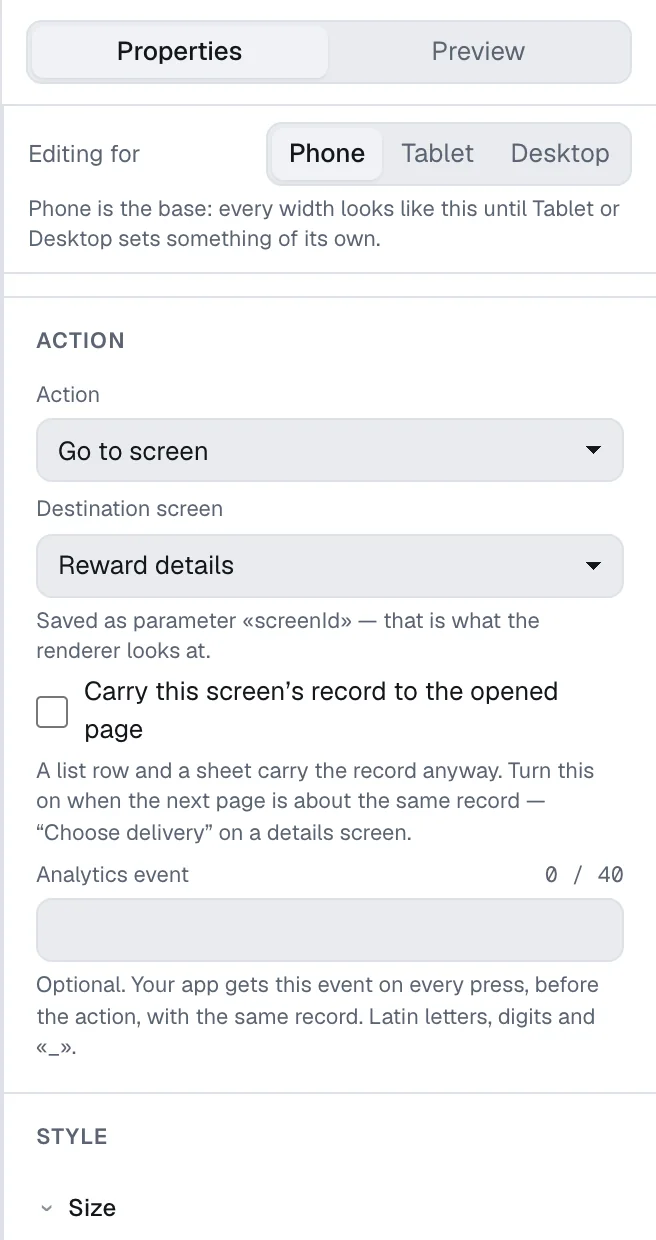
Buttons, icon buttons and list rows have an Action section in their properties. A column, a row, a container and a stack have it too — as Action on press — so a whole card can be pressed.
| Action | What happens |
|---|---|
| No action | Nothing. |
| Go to screen | Opens another screen of the document. Choose the Destination screen. |
| Go back | Returns to the previous screen, or closes a screen that was opened as a layer. |
| Switch to a section | Switches to another section of the app — the action of a navigation bar item. |
| Open a web page | Asks the app to open a web address that starts with https://. |
| Open an app link | Asks the app to follow its own link, such as myapp://offers/42. |
| Close the flow | Asks the app to close the whole flow. |
| Write a value, Toggle a flag | Write to a data path — see Controls of your own. |
| Other action (a string for your app) | Hands any string to your app, with the parameters you add. Your developers decide what it does. |
Moving between screens is done by HotLayout itself. Web addresses, app links, closing the flow and other actions are handed to your app, which carries them out — so agree with your developers which ones the app supports.
A web address or an app link can come from data instead of being typed: choose a data field in the list under the address. The typed address is then used when the data has none.
Analytics#
Analytics event is optional. If you name an event, the app receives it on every press, before the action, and can send it to your analytics. Event names use Latin letters, digits and _. You can add parameters to an event.
Screens#
A document can hold several screens. Each has a tab above the canvas.
- Add a screen with the plus button after the tabs.
- Open a screen by clicking its tab; drag a tab to reorder it. The order of tabs changes nothing in the app.
- Screen properties show when nothing on the screen is selected:
- Screen name — what you see in tabs and when choosing a destination.
- Screen identifier — what transitions refer to; it cannot be changed.
- Initial screen — the screen the app opens the document on. A document has exactly one.
- External entry — a name by which the app can open this screen directly, from a push or a banner. Lowercase Latin letters, digits and hyphens.
- Duplicate screen and Delete screen.
A screen that opens as a layer#
How it opens has two answers: As a page and As a layer on top. A layer appears over the previous screen, which stays visible underneath — use it for a confirmation or a short choice.
Layer place chooses between a Bottom sheet and a Middle window. The background and corners of the layer are the style of the screen itself.
Blur under the layer blurs the screen underneath — together with its app bar and navigation — while the dimming lies over it: choose Blur and set Strength, px (from 1 to 40); None removes it. The preview and the prototype show the screen the layer was opened from, blurred.
A person closes a layer by a tap on the dimming, by Esc and — a bottom sheet — by dragging it down. Turn Can be dismissed off for a layer that must wait for a button inside it: then only that button closes it.
The initial screen, and a screen that has an external entry, cannot be a layer: there is nothing for it to appear on top of. Close a layer with a button whose action is Go back.
The screen map#
The Map tab shows every screen as a thumbnail with arrows between them: who leads where, and who leads nowhere.
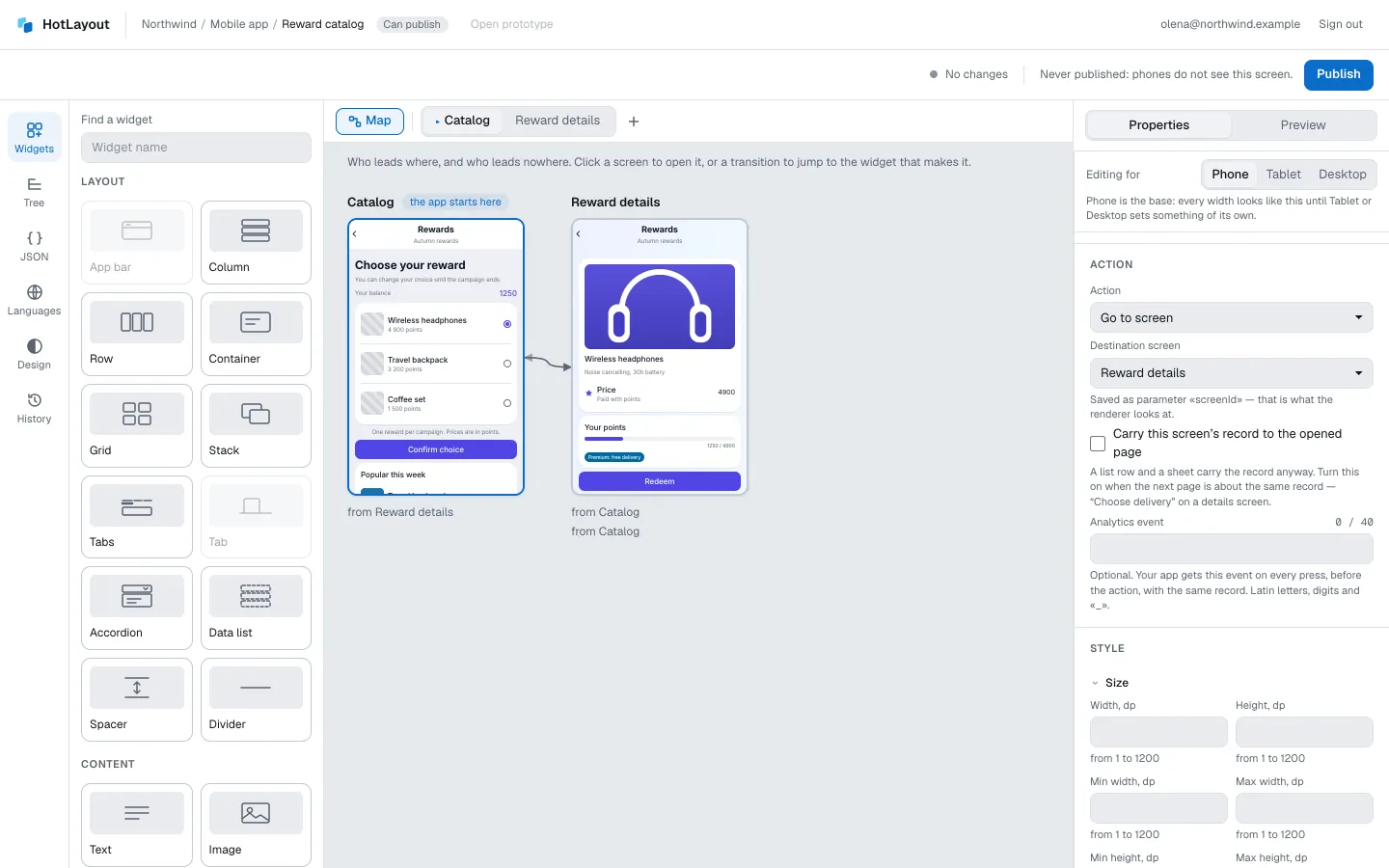
- The starting screen is marked. A screen that nothing leads to is marked too.
- Click a screen to open it.
- Click a transition to jump to the widget that makes it.
Input fields#
Three widgets let a person enter something: Text field, Switch and Checkbox. Each one writes to a data path: choose it in Writes to. What the person enters is handed to your app under that path.
A text field also has a Label, a Placeholder, a Hint under the field, a Keyboard (text, email, number, phone, web address), a Value type, a Maximum length and the number of Lines.
HotLayout does not validate what is typed. The Error text is a text from data: your app checks the value and sends the message to show.
An input field cannot stand inside a list from data.
Choose one of several#
Choice group holds list rows of which exactly one can be picked. Manage them in the group's properties under Options: each option has a title people see and a key the backend receives.
Required fields and the submit button#
- Turn on Required on the fields, checkboxes and choice groups that must be filled.
- On the button, turn on Disabled until the required fields are filled.
The button stays disabled until every required field of the screen has a value. A hidden or disabled field does not count.
A button, like a field, can also be disabled on a condition: Disabled if…
Controls of your own#
With Write a value any pressable widget becomes an option: a press writes a value to a data path, and the widget counts as selected while the path holds that value. Give the selected look in States with the condition “equals”. Toggle a flag flips a yes/no value on every press.
You can try all of this in the preview: type into fields, pick options and watch the button become enabled.