
Languages
Here you make a document speak several languages: turn translations on, add a language, fill in the table and check the result on the canvas.
Turn languages on#
Open Languages on the left.
A document made from a template already names its language: the template texts are written in English, whatever the language of your interface.
In a blank document, answer one question first — Which language the document texts are written in. Pick the language from the list and press Enable localization. Texts you have already typed stay where they are and become the source column.
Add a language#
- Press Add language.
- Start typing the name of the language or its code and pick it from the list. A language code is not typed by hand.
- Press Add.
Translate#
Every text of the document is a row and every language a column.
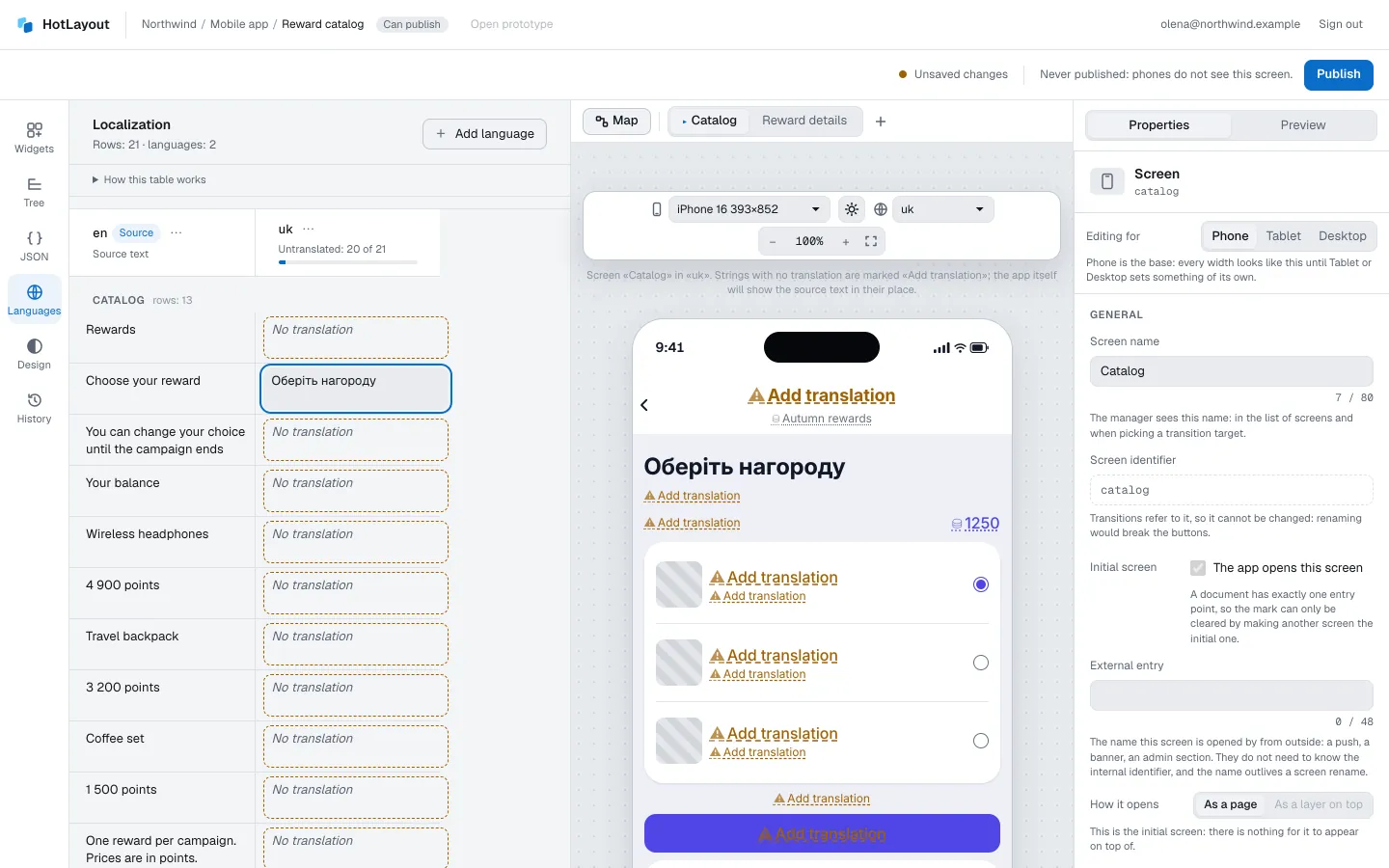
- Type the translation into the cell. The canvas next to the table follows the cell you are in: it shows that screen in that language and updates as you type.
- An empty cell is not an error. Until a translation exists, the app shows the source text. Empty cells have a dashed border, and the column header counts them.
- The number under a field is the advised length for that place on the screen. It is advice, not a limit.
- The source text can be edited here as well.
- Texts that come from data are not in the table: your backend sends them already in the right language.
A template is translated as one sentence, with the {names} of its values inside — so the translation can put them in another order. A word that agrees with a number has a cell for each form the language needs.
The menu in a column header changes the language of the column or removes it together with its translations. For the source column it corrects the language the source texts are written in.
See the screen in a language#
When the document has more than one language, the view bar above the canvas gets View language. It changes what you look at, not the document.
Untranslated strings stand out: on the canvas and in the preview they are replaced with a marker that says Add translation, so a screen with holes does not look finished. The app itself shows the source text in those places.
Right-to-left languages#
For a language written right to left, such as Arabic or Hebrew, the screen mirrors by itself: the start of a row becomes its right side, and directional icons such as a chevron flip. This is why the editor says “start” and “end” instead of “left” and “right”. Switch the view language to check.
Which language a person sees#
The app asks for the language of the device. If the document has it, that translation is shown. A regional variant falls back to its base language: a phone set to Arabic (Egypt) gets the Arabic translation. The reverse is not true — if the document has only a regional translation, a phone that asks for the base language gets the source text. The section warns you when a regional translation has no base language.
Clean up#
When a widget is deleted, its translations stay in the document as Translations without a place: 3. Remove them with Remove translations without a place.