
Screen widths
One document serves every width — a phone, a tablet and a browser window. Here you check a screen on wider frames and change its layout for them without touching the phone version.
Three widths#
| Name | Width of the screen |
|---|---|
| Phone | under 600 px |
| Tablet | 600–1023 px |
| Desktop | from 1024 px |
The phone is the base. Every width looks like the phone until Tablet or Desktop sets something of its own, and a Tablet setting also applies to Desktop unless Desktop overrides it.
Look at a wider frame#
In the view bar above the canvas, choose Web · tablet 768×1024 or Web · desktop 1280×800 in Device. The canvas draws the screen at that width and says which width you are editing.
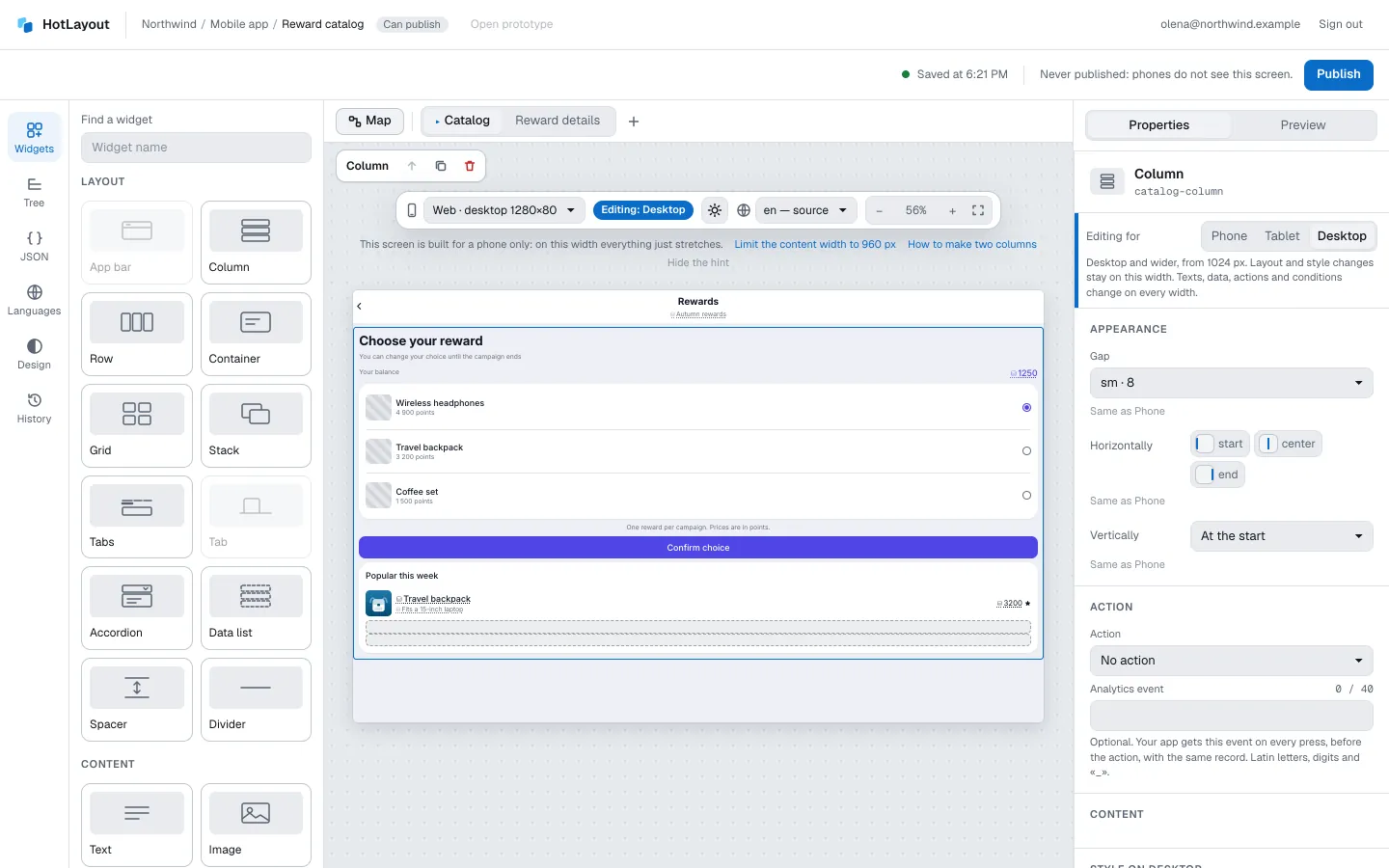
A screen built only for a phone simply stretches. The canvas says so and offers two quick fixes: limit the width of the content, and a hint on how to make two columns.
Change the layout for a width#
At the top of Properties, Editing for chooses the width: Phone, Tablet or Desktop. Choosing a wide frame on the canvas switches it for you.
With Tablet or Desktop chosen:
- Layout and style changes are saved for that width and wider. Under each field a note says whether the value is the same as on the narrower width or set here, and Reset returns to the narrower value.
- Texts, data, actions and conditions are the same on every width. If you change one of them, it changes everywhere, and the editor tells you so.
Typical changes: a container that is a column on the phone and a row on the desktop, a grid with more columns, larger padding, a bigger text style. For a container the panel offers these as one-press shortcuts under On wider screens.
Show a widget only on some widths#
Under Visibility, Show on has a checkbox for each width. Untick the widths where the widget should not appear. At least one stays ticked.
On a width where a widget is hidden, the canvas leaves it out, as the app will, and to see such widgets dimmed, turn on Hidden at this width / in this scenario in the Show menu above the phone.
This is independent of conditions on data: a widget is shown when both allow it.
Limit the width of the content#
On a wide window, text that runs from edge to edge is hard to read. Select the screen and set Largest content width; the content stays in a centred column of that width. Typical widths offers common values.
What changes by itself#
Two things adapt without any setting:
- The navigation bar stands at the top on Tablet and Desktop. To keep it at the bottom, select the bar and change Place on wide screens.
- A screen that opens as a layer becomes a window in the middle on wide screens. Its content is always laid out as on a phone, so the width switch is locked for such a screen.
Older versions of your app#
Width-specific settings need a version of your app that knows them. An older version ignores them: it shows a widget on every width and draws the phone layout. The editor reminds you about this next to the setting and before publishing. Ask your developers which version is in people's hands.