
Project settings
Here you find what all documents of a project share — its name and ID, the data dictionary, the way published documents reach the app, and the theme — and archive a project you no longer need.
Open a project and choose Project settings in the menu. Everyone in the organization can read this page; owners and admins can change it.
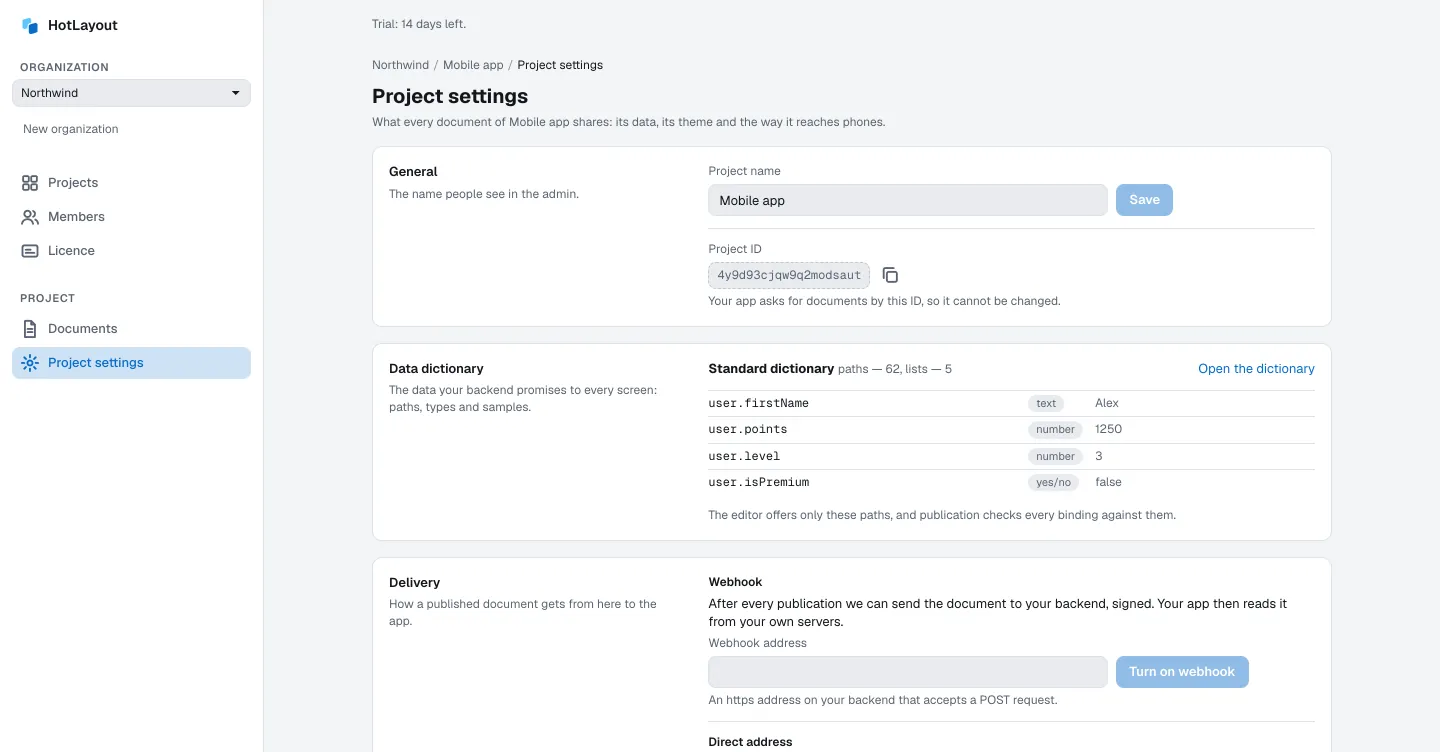
General#
- Project name — the name people see in the admin. Change it and press Save.
- Project ID — your app asks for documents by this ID, so it cannot be changed. Copy it for your developers with the button next to it.
Data dictionary#
A summary of the dictionary in effect and the button Open the dictionary. How to edit it is on the page Data.
Delivery#
Delivery is how a published document gets from HotLayout to your app. There are two ways, and your developers choose one.
Direct address#
Every published document is a file at an address. The app reads it from there. The page shows the address as a template; the ready address of a particular document is copied with Copy address for the app in the list of documents. The theme of the project has an address of its own.
Webhook#
With a webhook, HotLayout sends every published document to your own backend, and the app reads it from your servers. Turn it on when your developers ask for it — they give you the address.
- Enter the Webhook address. It must start with
https://. - Press Turn on webhook.
- The page shows a signing secret. Press Copy the secret and pass it to your developers through a safe channel, then press I have saved it. The secret is shown only once: nobody can read it again, not even you.
After that, Recent deliveries lists what was sent after each publication: Delivered, On its way or Not delivered with the reason. A failed delivery does not undo the publication: the document is published, only your backend did not receive it. Pass the reason to your developers.
If the secret is lost or the address changes, use Replace address and secret. Turn off stops sending and destroys the secret.
The technical description of both ways is in the Integration section of these docs, on the page about delivery.
Theme#
Which theme apps take. The theme itself is edited in the editor — see The theme.
Archive#
Archive project removes the project from the list. Nothing is deleted: its published documents keep working in apps, and you can bring the project back — show archived projects in the list, open the project and press Restore project.