Preview and prototype
Here you check a screen the way a person will see it: on different devices, with and without data, clicking through the flow — first inside the editor, then by a link you can send to a colleague.
The preview#
Open the Preview tab of the right panel. Unlike the canvas, the preview draws the screen finished: no editor marks, the app bar stays in place and the content scrolls under it.
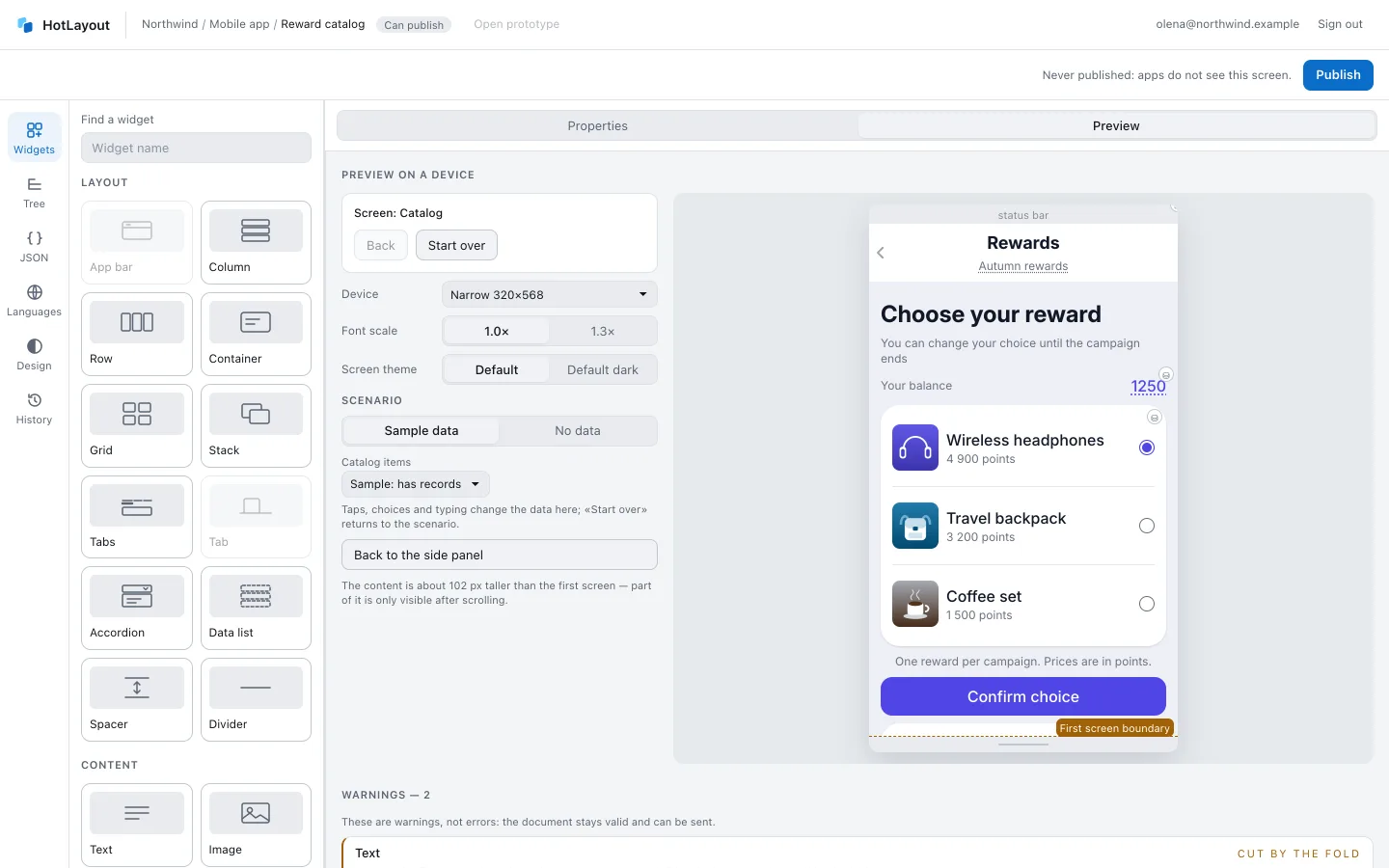
| Setting | What it is for |
|---|---|
| Device | The frame. It starts with the narrowest phone on purpose — that is where things stop fitting. |
| Font scale | The system font size. 1.3× is the accessibility setting that breaks layouts most often. |
| Screen theme | The theme of the project to draw with. It is the same choice as the theme button above the canvas: change it in one place and both follow. |
| Scenario | Which data the screen is drawn with — the same scenario as above the canvas. See Data. |
Use the whole workspace gives the preview the whole workspace.
Click through the flow#
The preview is live: press a button and it goes to the next screen; choose an option, type into a field, switch a tab. What you choose and type changes the data of the run, on top of the scenario. Back returns one step and Start over begins the run again and returns to the scenario; changing the scenario also forgets what you chose and typed.
Actions that belong to your app are not performed — the preview opens no web pages. It shows a note saying what the app would be asked to do, with which parameters, and which analytics event would be sent first.
Warnings#
Under the phone the preview lists what may look wrong on this device and font scale: a text that does not fit its line, content below the first screen, a text longer than advised. A dashed line marks where the first screen ends.
These are warnings, not errors: the document can still be published. Click a warning to open the widget in the editor.
The prototype link#
The prototype is the published document in a browser tab of its own — something to send to a colleague or open on your phone.
- Publish the document.
- Press Open prototype above the editor or in the list of documents.
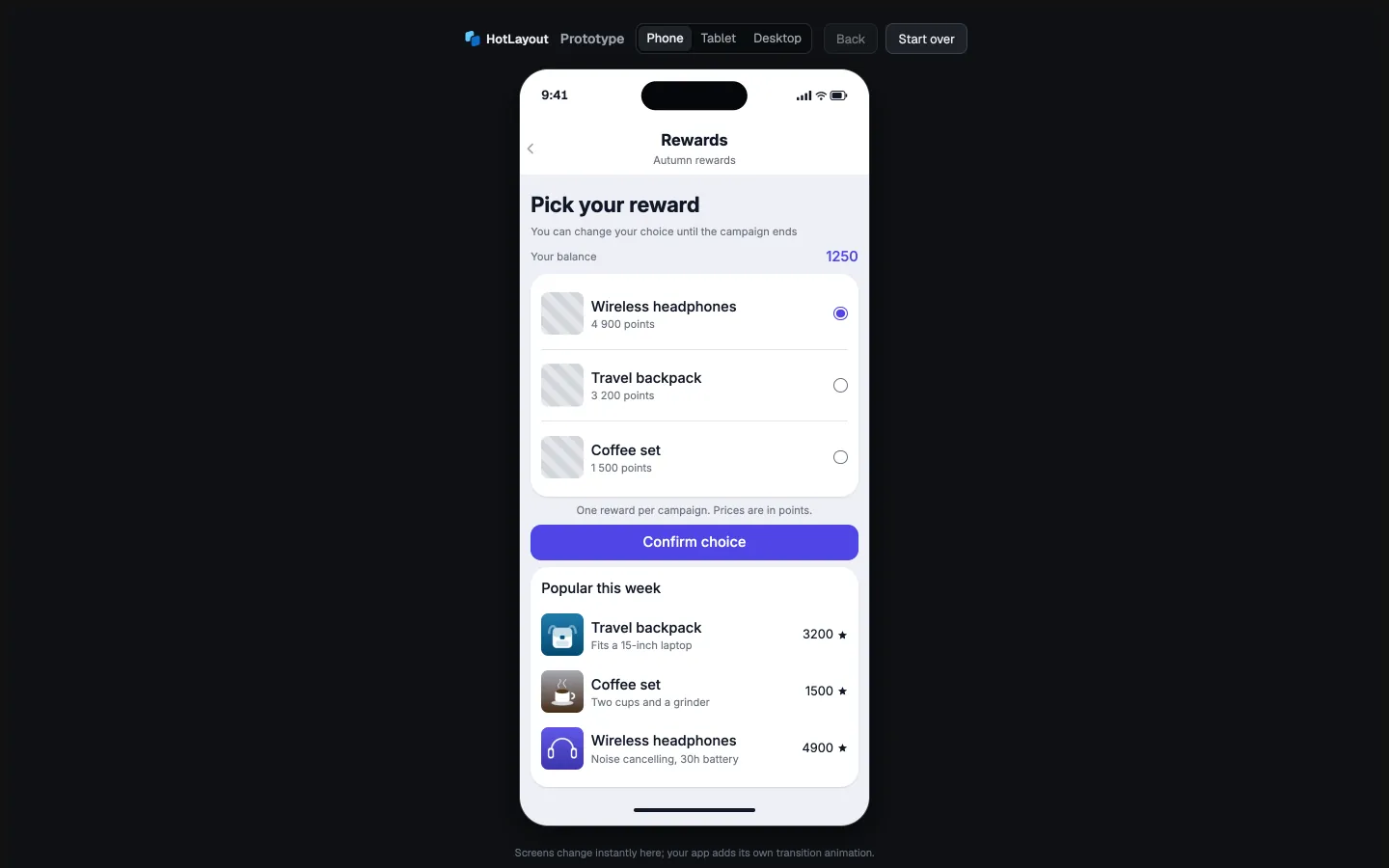
- The prototype shows what is published, not the draft. Until the first publication the link is not offered.
- It is clickable, like the preview, and has a switch between phone, tablet and desktop widths.
- The link opens for anyone who has it; no account is needed. Treat it like the published screen itself.
- If the project has its own data dictionary, the samples are shown only to members of the project who are signed in to the admin in the same browser. Everyone else sees fallback texts, and the page says so.
- Above the editor, beside Open prototype, you can choose the data the prototype opens on: Sample data, No data or a saved scenario of the project (see Saved scenarios); Copy prototype link copies the address with the choice. In the list of documents the link always opens sample data. No data opens for anyone — it reveals nothing. A saved scenario is read only for members of the project who are signed in to the admin in the same browser; everyone else gets sample data and a line on the page saying why. The link names the scenario by its identifier, so renaming it does not break links already sent; if the scenario is deleted, the link opens sample data and says so.
- Screens change instantly in the prototype; your app adds its own transition animation.

For people who only look#
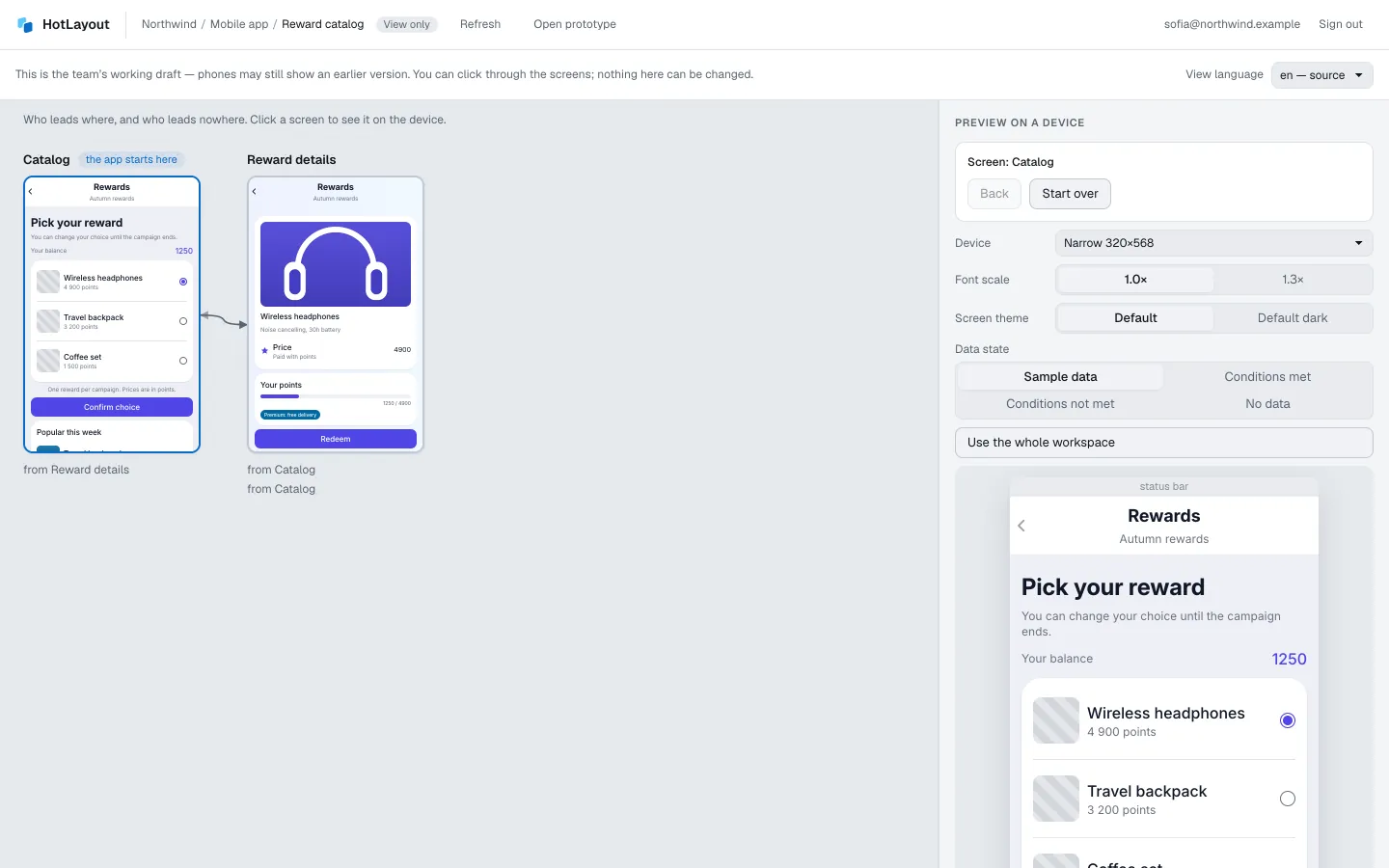
A member with the Viewer role opens a document as a view: the screen map and a phone to click through, with nothing to edit. It shows the team's working draft; Refresh loads the latest one.