
Style
Here you change how a single widget looks: its color, text style, spacing, size, background, border, radius and shadow — and make the look depend on data.
The Style section#
Select a widget and scroll the Properties panel to Style. The section is the same for every widget and is grouped: Text, Size, Inner spacing (padding), Outer spacing (margin), Background, Border, Corner radius, Shadow, Opacity, Glass. A group that already has a value is marked set.
A field that is not set is not applied: a widget has no hidden defaults beyond its built-in look.
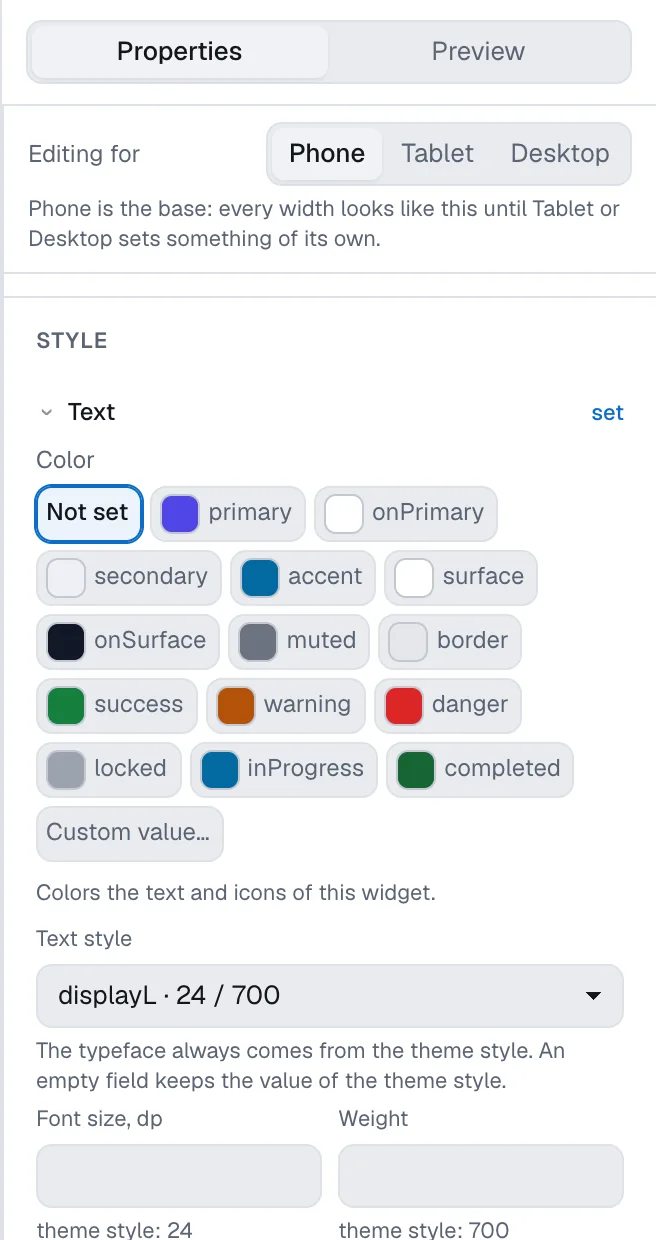
A token or a custom value#
Almost every field offers the values of the theme first — these are tokens: primary, md, lg and so on. Then comes Custom value…
- A token follows the theme. If the brand color changes, every widget that uses the token changes with it, and the color is right in both the light and the dark theme.
- A custom value is a number or a color you enter by hand. It does not move with rebranding and is the same in every theme.
Prefer tokens. At the bottom of the panel, Deviation from the design system lists the custom values of the widget, so you can see how far it has moved from the theme.
When a custom value turns out to be worth reusing, make it a token: in the same section, under the value, press Save to theme as…, fill in Token name and press Save. The value becomes a theme token and the widget now refers to it. The button is shown only to people who can publish, and only for a color, a padding or gap, a corner radius, a text style, a gradient or a shadow.
Details worth knowing:
- Color takes a token, a token with opacity, or a custom color as six hex digits such as
#ff7a59. - Padding, margin and radius take one value for all sides or separate values — switch with All sides / Per side and All corners / Per corner. Sides are named Start of line and End of line rather than left and right, so the layout mirrors correctly in right-to-left languages.
- Sizes are in dp — the points a phone lays out in. Width, dp and Height, dp set an exact size; the minimum and maximum fields set limits.
- Background is None, a color, a gradient or an image.
- Text style is a style of the theme; under it you can adjust the size, weight, line height and letter spacing for this widget only.
The note under a field tells you what the setting does on this widget — for example, that a color set on a container applies to the texts and icons inside it.
Slant and line#
Text has two more settings in the Text group: Slant (Upright or Italic) and Line (No line, Underlined or Struck through). As inherited takes the value from the nearest container that sets it.
To style a part of a sentence — a bold amount inside a line — see Text with values.
States#
A state changes the style when a condition on data is true: a locked card is grey, a completed task is green. You keep one widget instead of three copies.
- Under States, press Add state.
- Choose the data field and the condition, as for visibility.
- Set the style fields that differ in this state. The state is saved once it names at least one field.
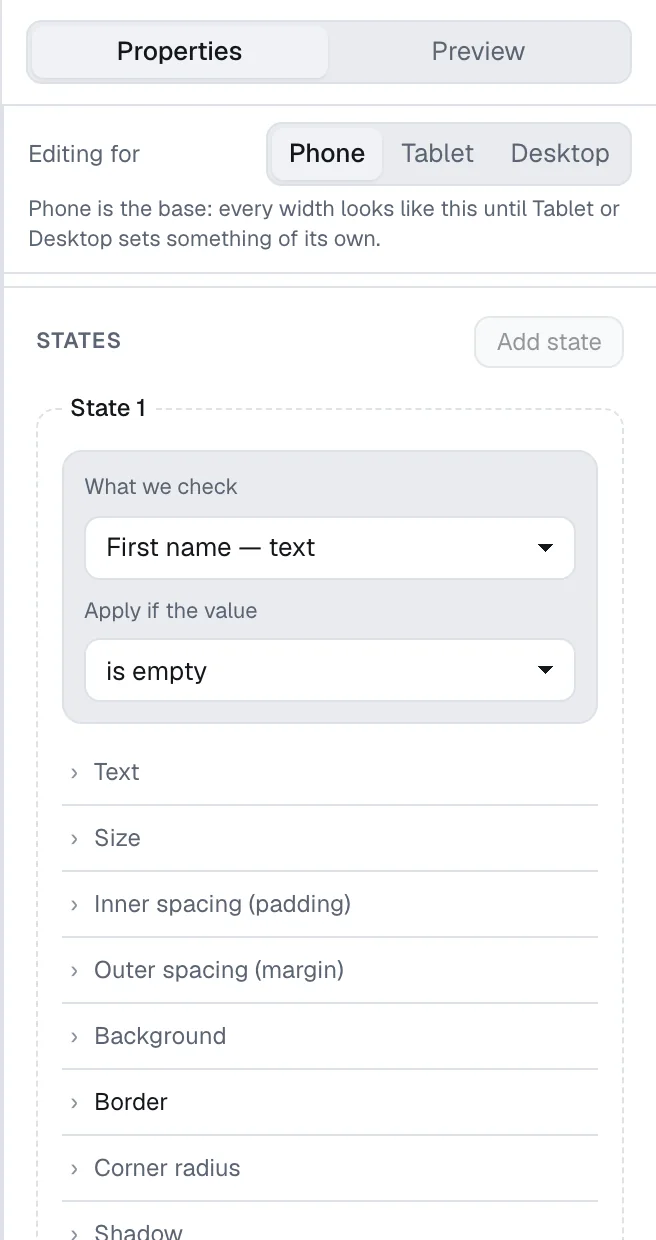
The first state whose condition is true wins, and it is layered over the base style: fields the state does not name keep their base value.
Glass#
The Glass group blurs whatever lies under the widget — the dots of a background, a picture, the screen behind a card. Set Background blur, px (from 1 to 40) and give the widget a translucent background: together they make frosted glass. The blur keeps to the corners of the widget, and the widget itself and its content stay sharp. Leave the field empty to remove the blur.
Motion#
The Motion section, at the bottom of the panel of any widget, makes it move without moving anything around it — a dot that drifts in the background, a button that breathes.
- Float — the widget drifts from its place and back. Direction is Up and down, Side to side or Figure eight; Distance, px is how far it goes.
- Breathe — the widget grows and shrinks. Scale at the peak is its size at the top of the cycle (1 keeps the size); Opacity at the peak, if set, makes it fade at the same time.
- Cycle, ms is one full cycle; Delay, ms holds the widget still before its first cycle — give several dots different delays and they move out of step.
- None removes the motion.
The canvas stands still so that you can build the screen; a moving widget carries a small wave mark. The motion plays in the preview, in the prototype and in the app. To see it on the canvas too, open Show above the phone and turn on Motion on canvas. On a phone with Reduce motion switched on, the widget stands still.
Style by screen width#
When Editing for at the top of the panel is set to Tablet or Desktop, the style you change is saved for that width only. See Screen widths.
Next#
- The theme — where tokens come from.