
The theme
Here you edit the design system of the project — the colors, spacing, radii, shadows and text styles that every screen takes its look from — and publish it to your apps.
Open the Design section#
Press Design on the left. The section shares the space with the canvas, so every change shows on the screen at once.
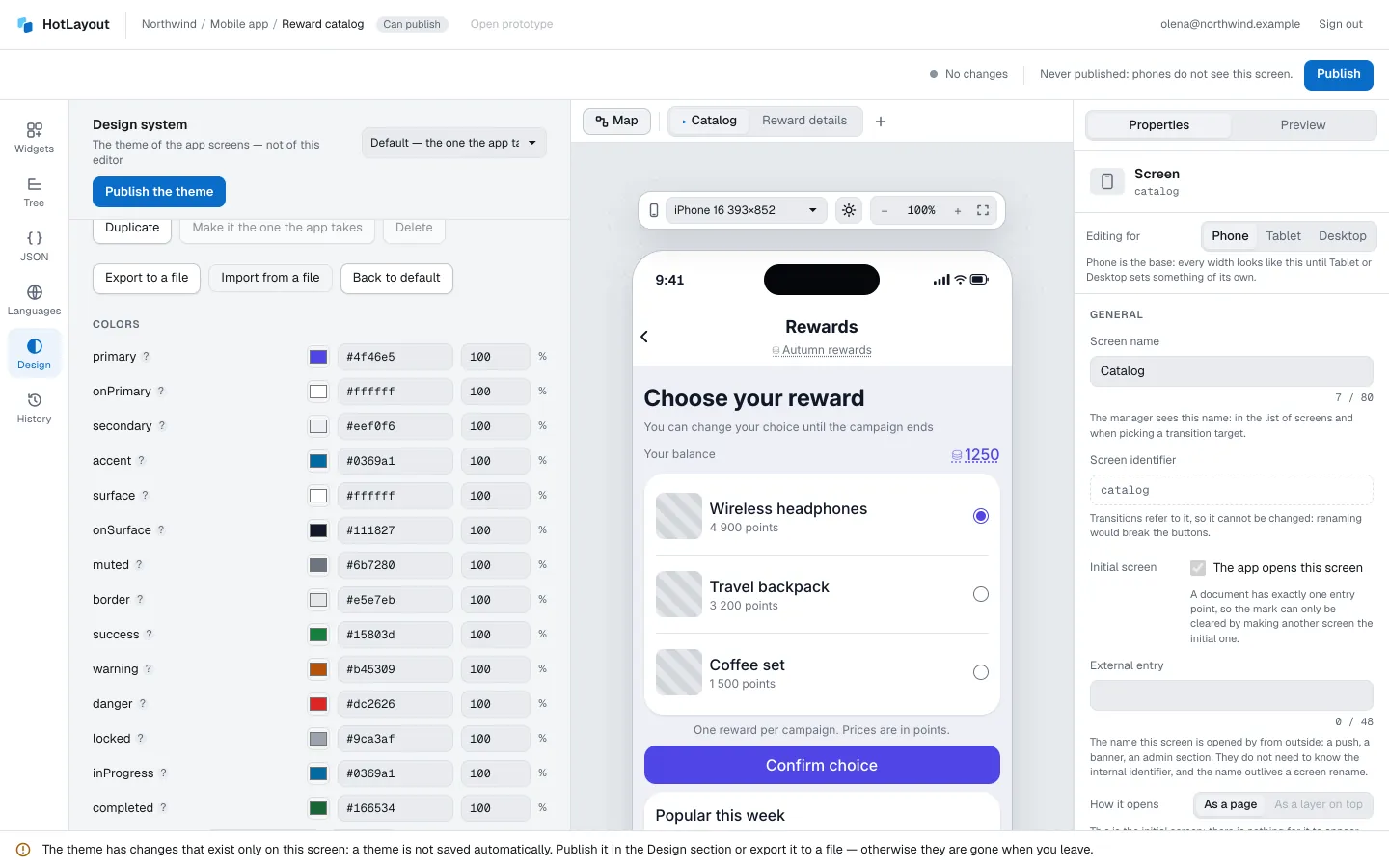
The theme belongs to the project, not to the document: one theme for all its screens.
Tokens#
A token is a named value. Widgets refer to the name, so changing the value here changes every screen that uses it.
| Group | What it holds |
|---|---|
| Colors | Colors with opacity. |
| Roles | Which colors a button variant or a badge tone is drawn with. |
| Gradients | A direction and two or more color stops. |
| Spacing | The scale used by gaps, padding and margin. |
| Corner radius | Corner radii. |
| Shadows | Shadows built from layers. |
| Font families | The typefaces for body text and headings. |
| Text styles | Size, weight, line height, tracking and family of each text style. |
Each group has a required core — the names every project has — and room for your own tokens. To add one, type a name in New token and press Add. A name is Latin camelCase, such as brandCoral. Your own tokens can be renamed and deleted; core tokens can only change their value.
Before a token is renamed or deleted, the editor shows which documents use it and what would break. Read that list: a document that refers to a token the theme no longer has cannot be published.
Under Roles, a warning appears when a text color is hard to read on its background.
What changed at the bottom lists every value that differs from where you started.
Several themes#
A project can have several themes — typically a light and a dark one.
- The list at the top of the section chooses the theme you are editing. The canvas is drawn with it.
- Duplicate makes a copy to start a new theme from.
- Make it the one the app takes marks the theme the app takes. Choosing a theme in the list does not change it.
- Every theme of the set declares the same token names, each with its own values.
The button in the view bar of the canvas switches the same thing: the theme you see is the theme you edit.
Publish the theme#
A theme has no draft and is not saved automatically. While it has changes that exist only in your browser tab, a bar at the bottom of the editor says so.
To keep the changes, press Publish the theme. Apps pick the theme up on the next launch of the app.
- Publishing the theme needs the right to publish. An editor can look at the values and export them but cannot publish.
- If a document uses a token that exists only in your tab, the document is not published until the theme is. Publish the theme first, then the document.
- If someone else published the theme while you were editing, the editor does not overwrite their work silently: it offers to open theirs or to publish yours over it.
Export and import#
Export to a file saves the whole set of themes as a file; Import from a file loads one. Use them to hand the theme to a designer or to move it between projects. An import changes only what is in your tab — publish to keep it. Back to default drops the changes of the theme you are editing and returns its default values.
Next#
- Style — using tokens on a widget.
- Publishing