
Getting started
Here you get access by invitation, accept it, set up your organization with its first project and open your first document in the editor. It takes a few minutes.
Watch: Your first screen in 3 minutes (3 min).
Get access#
HotLayout is available by invitation: there is no self sign-up.
- Open
hotlayout.comand press Get access. - Fill in your name, company and work email. If you like, say what you want to do with HotLayout.
- Press Request access.
We reply within one business day with an email that holds your invitation link.
Accept the invitation#
Open the link from the email. The page You are invited to HotLayout shows the email the invitation was sent to and what you get: a trial of a given length, or a licence.
- Check Organization name: it comes from the invitation, and you can change it.
- Enter Your name, a Password and Repeat the password. The password is from 8 to 128 characters.
- Press Create account.
You are signed in and land in your new organization. The link works once and for seven days. If the page says This link does not work, the invitation was already used, revoked or has expired: ask for a new one.
If an account for that email already exists, the page asks you to sign in first and then press Accept invitation. Sign in with the same email the invitation was sent to.
Sign in#
Next time, open the admin: hotlayout.com/admin, enter your Email and Password and press Sign in.
Forgot the password? Press Forgot password on the sign-in screen, enter your email and press Send reset link. The link in the email opens a page where you set a new one.
Confirm your email#
An account created from our invitation email already has a confirmed address. You see Confirm your email only when you set a password from a teammate's invitation link: that link is not sent by HotLayout, so the address must be confirmed first. Until then this is the only screen of the admin, and you are not in the team yet; right after the confirmation the invitation opens and you press Accept invitation. Why it works this way is explained on the page Team and roles.
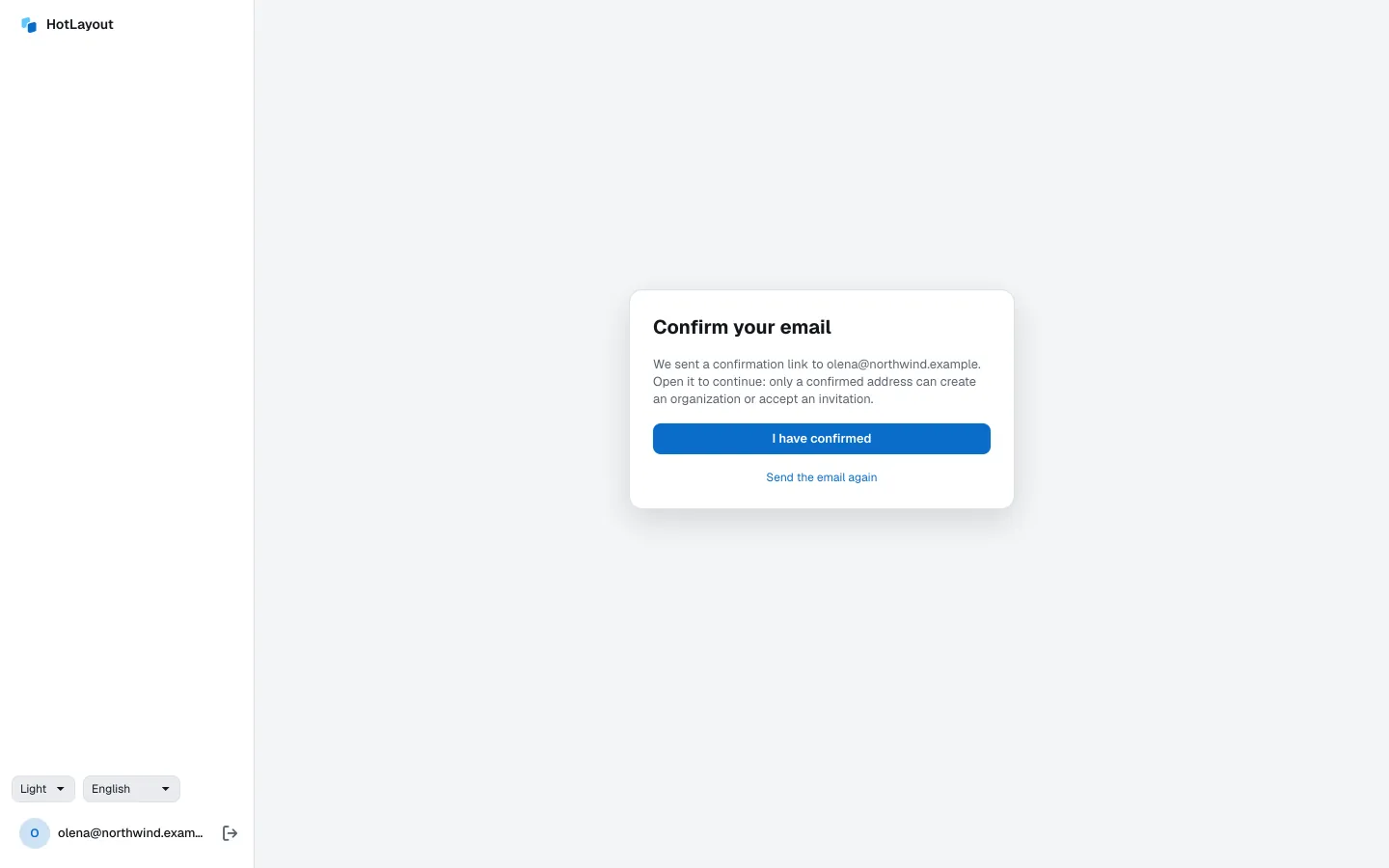
- Open the email from HotLayout and follow the link in it.
- Return to the admin. The page continues by itself; if it does not, press I have confirmed.
No email? Press Send the email again and check the spam folder.
Create the first project#
A new organization is empty: the page says This organization is empty.
- Press New project.
- Enter the Project name — usually the name of your app. A project holds the app's documents, its theme, its data dictionary and its images.
- Press Create.
Open the project: its page is the list of documents, empty for now.
You can be a member of any number of organizations that invited you. Your organization starts with the trial or the licence named in your invitation. What it means is on the page Trial and licence.
Signed in but not in any organization? The admin says You are not in any organization yet: open the link from your invitation email, or ask for access again.
Create the first document#
A document is a screen, or a flow of several screens, that your app shows.
- In the project, press New document.
- Under Start with, choose what the document begins with:
- Blank — an empty screen you build from widgets.
- A template — a ready document you change to fit: Onboarding, Promo offer, Tasks with progress, Reward catalog, Level in a ring or Campaign terms. Each card shows the first screen and how many screens the template has.
- Enter the Document name. If you pick a template first, its name is filled in for you.
- Press Create.
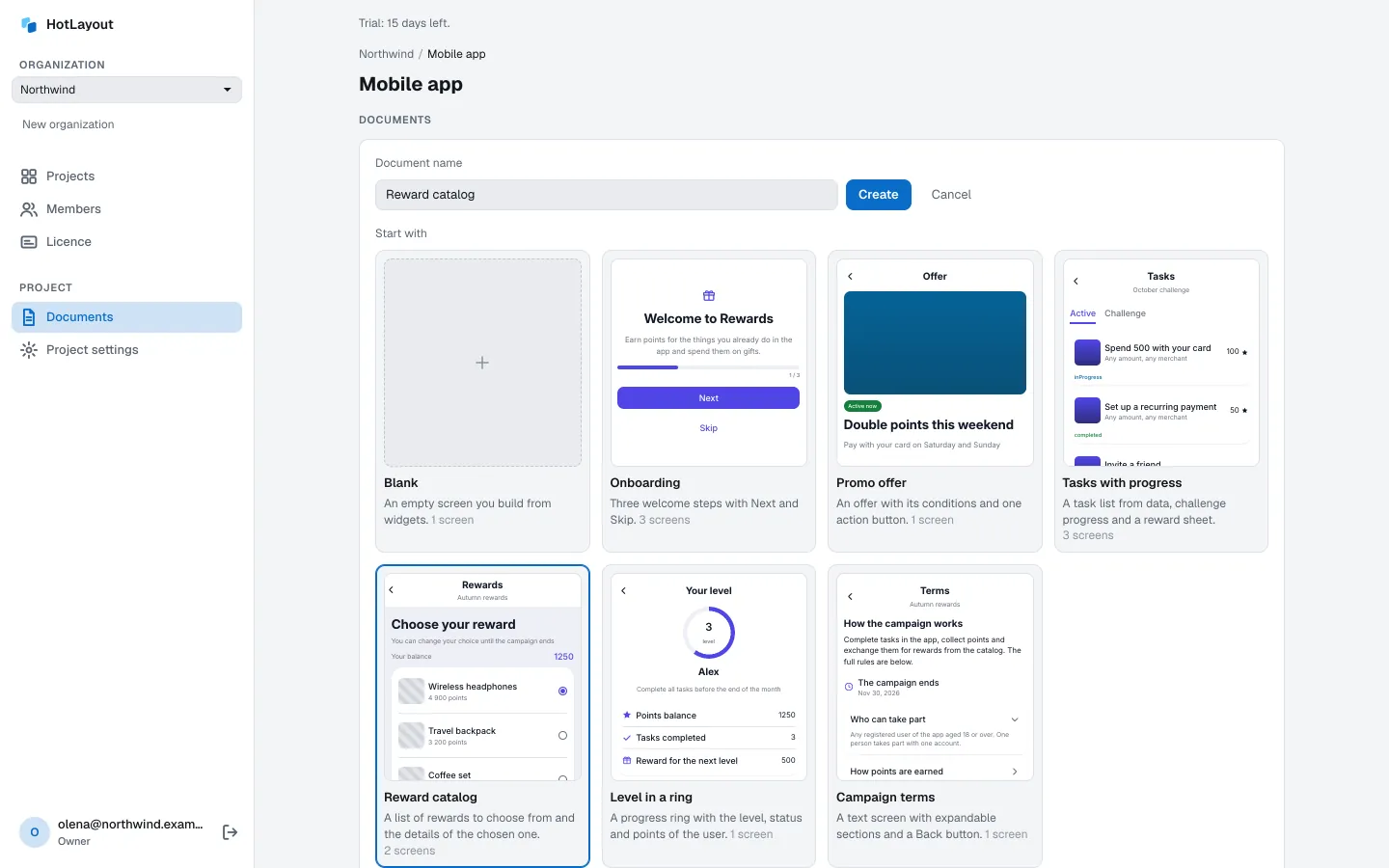
The document opens in the editor. A blank document shows an empty phone with the words Start with a widget; a template shows its first screen, ready to edit.
A template is a starting point, not a link: after the document is created, it is yours and changes to it do not touch the template. Template texts are in English; replace them with your own or translate them.
The list of documents#
Back in the project (click its name in the breadcrumbs), every document is a row:
- Name — click it to open the editor. The line under the name is the ID of the document; your developers use it to ask for the document from the app.
- In apps — whether the document is published: Never published, Live or Live, with unpublished changes.
- Open prototype — the published document in a browser tab, see Preview and prototype.
- Copy address for the app — the address of the published file, for developers.
- Archive — removes the document from the list without deleting anything; its published version stays available to the app. Archived documents come back with the checkbox that appears under the list.