
The editor at a glance
This page is a map of the editor: what each part is for and where to look for a setting. Read it once; the following pages go into each part.
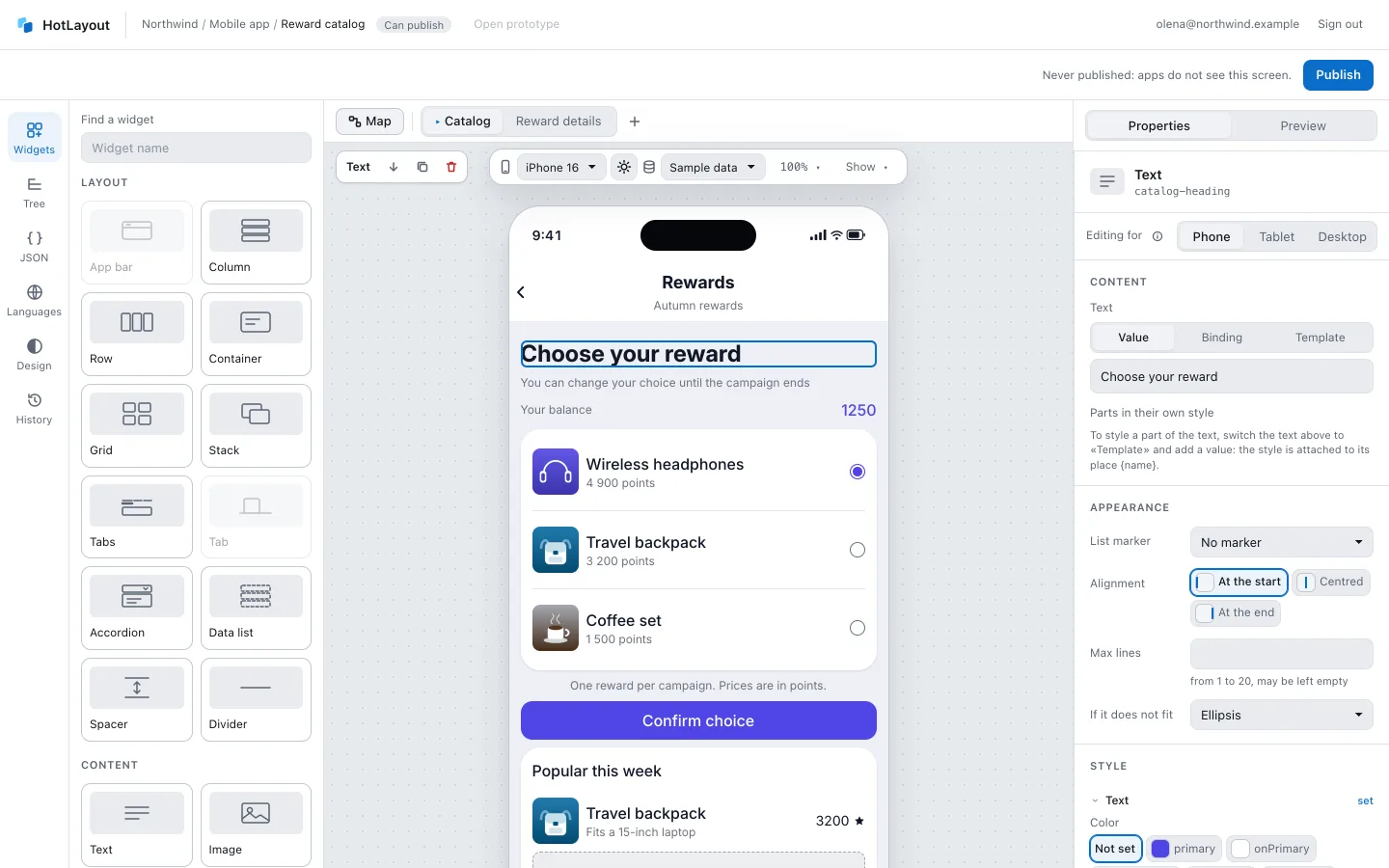
The top of the page#
The first line belongs to the admin: the breadcrumbs (organization / project / document), your access to this document — Can publish, Can edit, not publish or View only — and the link Open prototype.
The second line belongs to the editor:
- The status — one line for the whole document. While the draft is being saved it says Unsaved changes or Saving…, and if saving fails, Not saved. Otherwise it is the publication status — what apps see now, for example Never published: apps do not see this screen. or There are unpublished changes. The time of the last save is in the tooltip. The draft is saved automatically.
- Publish — sends the draft to your apps. See Publishing.
Six sections on the left#
| Section | What you do there |
|---|---|
| Widgets | Pick a widget and add it to the screen. |
| Tree | See the structure of the screen, select, move and search. |
| JSON | Export the document to a file, import one, see the list of errors. |
| Languages | Translate the texts of the document. |
| Design | Edit the theme: colors, spacing, text styles. |
| History | See what was published and bring an earlier version back. |
Widgets and Tree open as a panel next to the canvas. Languages and Design share the space with the canvas, so you see the result of a change at once. JSON and History take the whole workspace; press Esc to return to the canvas.
The canvas#
The canvas shows the screen inside a phone. The status bar and the home indicator of the phone are an imitation: they are not part of your screen.
Above the phone:
- Screen tabs — one per screen of the document, the Map tab before them and a button to add a screen. See Actions and navigation.
- The view bar — how you look at the screen. None of these settings is saved into the document.
- Device — phone frames (Android 360×800, Pixel 9, iPhone SE, iPhone 16, iPhone 16 Pro Max, a narrow 320×568) and two browser windows, Web · tablet 768×1024 and Web · desktop 1280×800. The list names the model; the size is in the tooltip.
- Screen theme — the theme the screen is drawn with; with one light and one dark theme it is a single button.
- Scenario — which data the screen is drawn with; All states puts the screen on several phones side by side, one per data state. See Data.
- View language — appears when the document has more than one language. The tooltip names the source language.
- Canvas zoom — one button showing the current percentage; its menu has Zoom in (⌘+), Zoom out (⌘−), Back to 100% (⌘0) and Fit the phone to the window (Shift+1).
- Show — what else the canvas marks: Data bindings (Shift+B), First screen boundary and Hidden at this width / in this scenario. All three are off at first, and none of them applies in All states, where the phones show the finished screen.
- Actions of the selected widget — its name with buttons to move it, duplicate it and delete it. The bar appears when a widget is selected.
Click a widget on the canvas to select it. Marks on a widget are the editor's notes and never reach the app: they appear on the selected widget and under the pointer — whether the value comes from data, whether it is shown on a condition, whether it has style states. Only a widget that keeps the document from publishing is marked always. An empty container shows a quiet dashed frame; the words inviting you to add a widget appear while you drag one.
The right panel#
- Properties — everything about the selected widget: content, appearance, action, style, visibility. With nothing selected it shows the properties of the screen and the name of the document. A short explanation of a field is folded behind the i button next to its name: press it to read, press it again to fold. An explanation you opened stays open on other widgets. Reasons why something is disabled, and errors, are always written out in the panel.
- Preview — the screen as the app draws it, with data states and a flow you can click through. See Preview and prototype.
At the top of Properties the switch Editing for chooses the width you are editing for; see Screen widths.
Undo and keyboard shortcuts#
There are no undo buttons — use the keyboard. On Windows and Linux press Ctrl where the table says ⌘.
| Keys | What happens |
|---|---|
| ⌘Z | Undo |
| ⇧⌘Z | Redo |
| ⌘C, ⌘X, ⌘V | Copy, cut and paste the selected widget |
| ⌘D | Duplicate the selected widget |
| Delete or Backspace | Delete the selected widget |
| ⌘+ and ⌘− | Zoom the canvas in and out |
| ⌘0 | Back to 100% |
| ⇧1 | Fit the phone to the window |
| Esc | Close a section that covers the canvas |
| ⇧← and ⇧→ | Move the focused screen tab |
You can also zoom with a pinch on a trackpad, or with ⌘ and the mouse wheel over the canvas. Shortcuts do not fire while you type in a field.
In a narrow window#
When the editor is narrower than about 1160 px, the right panel hides; open it with the Side panel button at the top and close it with Esc. Below 600 px the editor shows The editor needs more room — widen the window.