
Building a screen
Here you put widgets on a screen, arrange them with containers, and set up the fixed parts of a screen: the app bar at the top, the navigation bar and a pinned block at the bottom.
Watch: Layout: columns, rows, stacks and pinned parts (3 min).
Add a widget#
Open Widgets on the left. There are two ways to add a widget:
- Click it. The widget goes into the selected container; with nothing selected, onto the screen.
- Drag it onto the canvas or into the tree. A line shows where it will land.
A widget that cannot go into the selected place is dimmed; hover over it to read why — for example The screen already has a top bar — a second one is not needed. You can still drag a dimmed widget to another place where it fits.
The palette has four groups:
| Group | Widgets |
|---|---|
| Layout | App bar, Column, Row, Container, Grid, Stack, Tabs, Tab, Accordion, Data list, Spacer, Divider |
| Content | Text, Image, Icon |
| Actions | Choice group, Button, Icon button, List row, Navigation bar, Navigation item, Text field, Switch, Checkbox |
| Gamification | Progress bar, Progress ring, Badge |
Select, move, copy, delete#
- Select a widget by clicking it on the canvas or in Tree. The tree is the easy way to reach a container that is fully covered by its children.
- Move it by dragging — on the canvas or in the tree — or with the arrow buttons in the bar above the canvas. From the keyboard: focus the widget, press Space to pick it up, use the arrow keys to choose the place, Space to drop, Esc to cancel.
- Copy with ⌘C and paste with ⌘V, duplicate with ⌘D or the button in the bar, delete with the Delete key or the button in the bar.
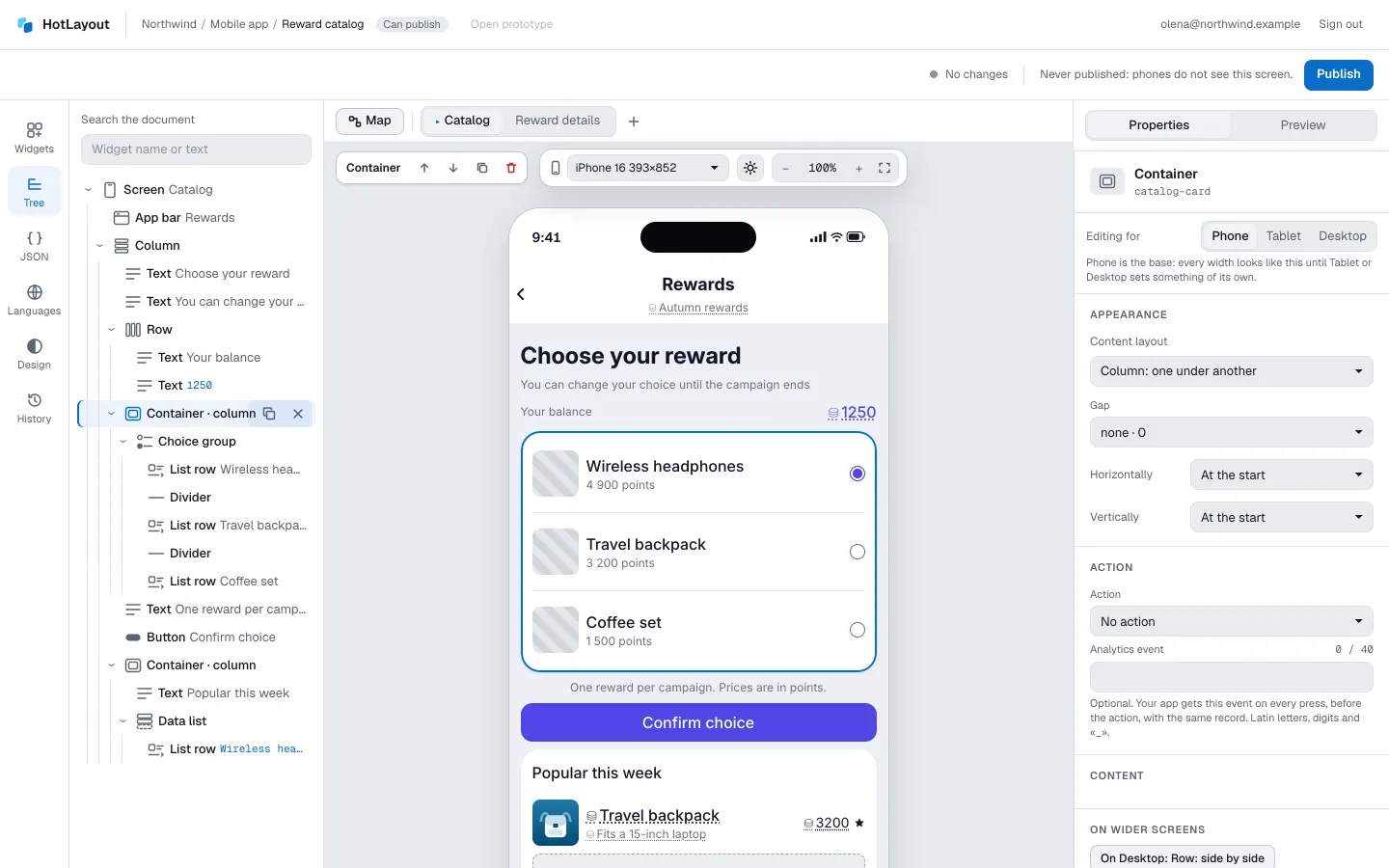
In the tree you can also search the whole document by widget name or by visible text.
Containers#
A container holds other widgets and decides how they are laid out.
- Column — children one under another with an even Gap.
- Row — children side by side. Distribution spreads them along the row, Wrap to the next line moves what does not fit to the next line, and Scroll sideways lets the row scroll instead. A row cannot wrap and scroll at once.
- Container — a card: background, corner radius, shadow and padding come from its style. Content layout chooses between a column and a row.
- Grid — equal Columns, wrapping to the next row.
- Stack — layers one on top of another: a badge on the corner of a card, a gradient over a photo. The first child is the lowest layer.
- Tabs — several panels under one bar of titles; each panel is a Tab.
- Accordion — content under a title that opens on a tap.
- Spacer and Divider — empty space and a thin line between neighbours.
Some settings belong to a widget because of where it stands. They appear in its properties only in that place:
- In a row: Width in the row — a share of the row's width. Two children with shares 2 and 1 split the row two to one.
- In a stack: Layer place — With the stack or Own place with alignment, shift and rotation — and Layer size, where Whole stack stretches the layer over the whole stack.
- In a screen, a column, a container or a row: Over the previous one — the widget moves over the one before it by the amount you set.
Alignment#
The screen, a column and a container align their children on both axes with Horizontally and Vertically.
The vertical setting needs free space. If the container is only as tall as its content, the panel says so: Has no effect now: the node has no free height — set a height in “Style”. Give the container a height or a minimum height in Style and the setting starts to work.
The app bar#
App bar is the top bar of a screen. A screen has one, and it is always the first element. It stays in place while the rest of the screen scrolls.
- Title and Subtitle — texts of the bar; Title position puts the title at the start or in the centre.
- On the left — what stands at the start of the bar: Back arrow, Own button or Nothing. An own button is an ordinary button: its label, icon and action are edited on the button itself.
- Actions on the right — up to two icon buttons after the title. Add one with the button in this section, then set its icon, name and action on the button itself.
After scrolling#
Over a picture that starts at the top of the screen the bar is usually transparent — and once the screen scrolls, the text slides under its buttons. The After scrolling section gives the bar the look it takes while the screen is scrolled under it: Background, Text and icons, Shadow and the blur of glass. Title shown set to After scrolling hides the title at rest; it keeps its place, so nothing jumps. The canvas never scrolls, so there the bar is at rest and a hidden title is dimmed; scroll the preview to see the change. The section has an effect only on the bar that is the first element of the screen.
Progress bars and rings#
Ends set to Round rounds the ends of the fill of a progress bar and of the arc of a ring. The rounding stays inside the filled part: a small value is a dot, a full scale is a ring without a seam. Without it the ring ends are square and the bar ends follow the theme.
Glow set to Soft or Strong makes the filled part of a bar or a ring glow in its own color or gradient; the track does not glow. A bar in steps lights one step: the current one when it has its own color, otherwise the last filled one. No glow removes it. When a bar in steps grows on show or changes with the data, the step that is filling fills smoothly; at rest a step is either filled or not.
The navigation bar#
Navigation bar is the bottom bar that switches the sections of an app. It holds two to five items; each Navigation item has an Icon, a Label and a Section screen — the screen it opens.
The bar is a part of every section screen, so each of those screens needs the same bar:
- Add the bar to one screen and set up its items.
- Select the bar. Under Other sections, press the button that puts the bar on the other sections.
- After you change the items later, do it again.
The bar stays at the bottom of the phone while the screen scrolls. On wide screens it moves to the top; Place on wide screens can keep it at the bottom. See Screen widths.
A navigation bar is not drawn on a screen that opens as a layer; the editor tells you if you put one there.
A floating bar#
Floats over the content turns the bar into a floating one: the content scrolls under it, and the end of the screen gets room for the bar, so the last row still scrolls clear of it. The look is the style of the bar: give it a margin from the edges, a corner radius, the blur of glass and a shadow. A pinned block above the bar floats too. On wide screens with the bar at the top the setting has no effect.
A dot on an item#
Dot when puts a dot on the icon of a navigation item while a condition about the data holds — “new missions” when their number is above zero. It is the same condition as for showing an element; with No data the dot follows the same rule. The dot takes the accent color of the theme and does not change the name of the item.
The dot appears with a short flash when the condition becomes true while the screen is shown, and fades when it stops holding; a dot that is already there when the screen opens does not flash.
Pinned to the top#
A greeting, a large section title, a row of filter chips should stay at the top while the content scrolls — as in any app. Select the element and set Pinned to the top to Pinned: it moves to the top of the screen, right under the app bar, and the content scrolls below it. Several elements can be pinned; they stand in a row in the order of the screen, and pinning puts the element at the end of that row. Scrolls with the screen returns it to the content. On a screen whose body starts at the very top of the screen, under the app bar, nothing can be pinned to the top.
A pinned block#
To keep a button visible under a long screen, pin it to the bottom: select the last element of the screen and set Pinned to the bottom to Pinned. The block stays in place while the content scrolls above it.
Only the last element of the screen can be pinned (the navigation bar does not count). To pin several things, put them into one container and pin the container.
Gradient text#
On a text, Text gradient in the Text group of the style set to Gradient on the letters paints the letters with a gradient of the theme or your own — a large number, a title, the ✦ sign. The gradient spans the whole text, not each line. The color of the text stays: an older app paints the text with it, and a part of the text with its own color keeps that color. Other widgets do not read the setting.
Swipe to confirm#
For an action that must not happen by accident — spending points, confirming a payment — set the button's Confirmation to Swipe to confirm. The button becomes a track with a thumb at the start: the action runs only when the thumb is dragged to the end; let go earlier and it slides back. From the keyboard and for screen readers it stays an ordinary button. The canvas shows the thumb at rest; drag it in the preview.
When the thumb is dragged to the end, it stays there with a spinner until the app answers — the next screen opens, or the action ends and the thumb slides back. While it spins, the button does nothing. In the preview the spinner shows for a moment before the next step.
A dashed border#
In the Border group of the style, Line set to Dashed draws the border in dashes that follow rounded corners — a code card, a drop area. It takes the same room as a solid border.
A shadow in the color of the card#
In the Shadow group of the style, Shadow color set to Color of the background colors every layer of the shadow with the background of the element and keeps how transparent the layer is: cards of different colors glow each in its own, even when the color comes from data through a state. A gradient background gives the color of its middle. Its own color returns the shadow to its color.
Response to a touch#
On the phone a pressed card, row or button shrinks a little and springs back; an icon button, a ghost button and a navigation item fade. Select the element and set Press feedback to None to keep it still; As the platform returns it. The canvas does not move; press in the preview.
In the action of an element, Haptic feedback asks the app for a short vibration on each press — Light tap for a card, Selection change for tabs and sections, Success for a confirmed exchange. The phone decides whether it can; without the setting nothing is asked, and the preview writes the request in its notes instead of vibrating.
Long press#
Select a pressable card or a list row and open Long press: Action on long press is the same action as on a press, and it runs when the finger stays on the element for a moment — open a small card in the middle of the screen, a quick exchange. The action on press then does not run. Name of the long press action is required: a person with a screen reader or a keyboard reaches the action by this name. A button has no long press. On the canvas nothing happens; hold the mouse button in the preview.
Groups in a list#
Select a list from data and choose a field of its record in Group by: records that follow one another with the same value form a group, and a header is drawn before each group — a text with the value of its first record, which you can style like any element. No groups removes the grouping together with the header. Records keep the order the data gives; only a list in a column groups.
Screen settings#
Click an empty part of the screen to see its properties: Gap between elements, alignment, Largest content width and Body starts — whether the content begins below the app bar or at the very top of the screen, under it.