
Data
Here you connect a screen to the data of your app: show a value from the backend instead of a fixed text, format dates and money, build sentences around numbers, show a widget only on a condition and draw a list from records.
Watch: Data on a screen (4 min).
Where data comes from#
The editor does not know your backend. It knows the data dictionary of the project — the list of fields the backend promises to every screen, each with a type, a label and a sample value. You bind a widget to a field of the dictionary; the app puts the real value there.
The samples are what you see on the canvas and in the preview. They are examples, not what a user will see.
A new project uses a standard dictionary. To describe your own data, see The data dictionary below.
Bind a text to data#
Every text field of a widget has three modes:
| Mode | What the text is |
|---|---|
| Value | A fixed text you type. |
| Binding | A value from data. |
| Template | A sentence with places for values. |
To show a value from data:
- Select the widget and switch its text to Binding.
- Choose the Data field. The list holds the fields of the dictionary whose type fits this place; a path cannot be typed by hand.
- Fill in the Fallback value — the text the app shows when there is no data.
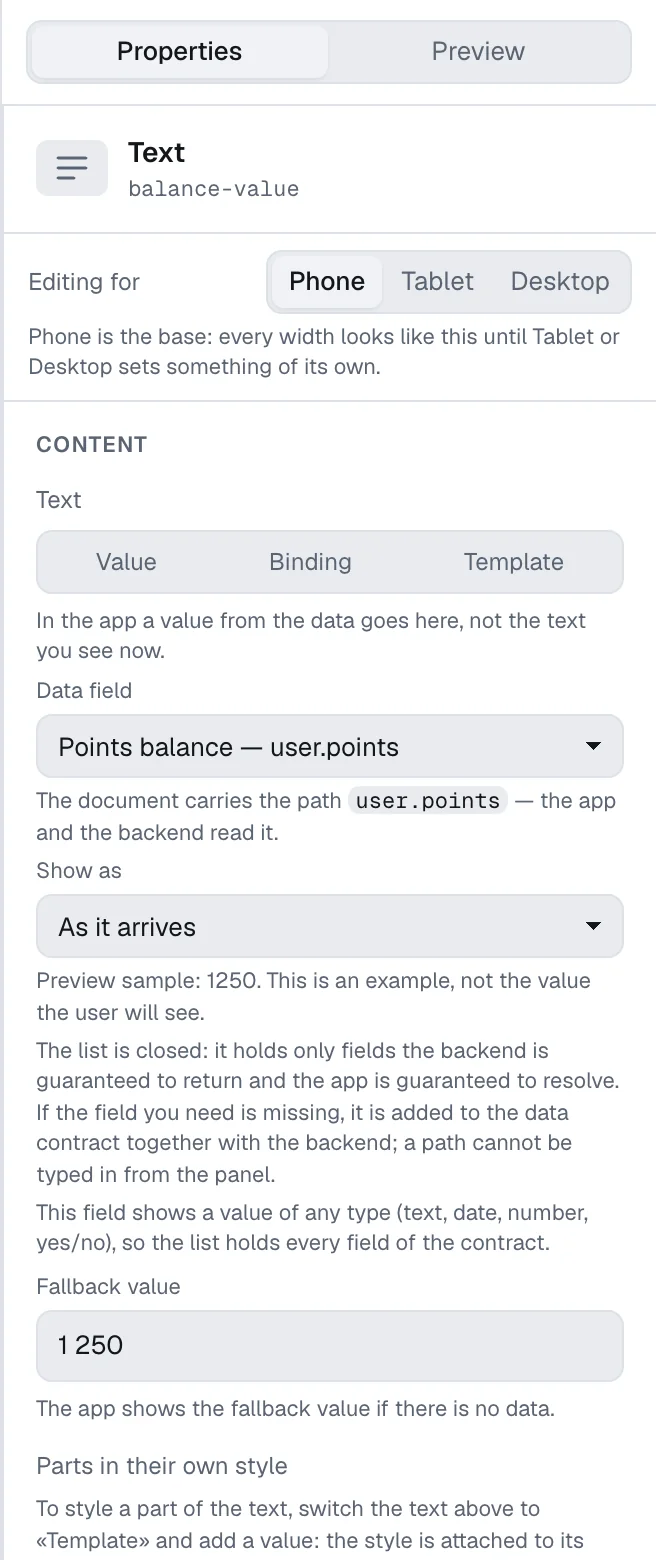
On the canvas a bound value shows the sample from the dictionary. Which values come from data you see on the selected widget, by its ⛁ mark; to mark them all at once — a dotted underline and the ⛁ mark on every widget — turn on Data bindings in the Show menu above the phone, or press Shift+B.
Formats#
Show as decides how the value is written. The list offers the formats that fit the type of the field.
| Format | Result |
|---|---|
| As it arrives | The value as the backend sent it. |
| Date, Date and time, Time | A date or a time written the way the language of the screen writes it. For a date, Date parts chooses which parts are shown. |
| Number with separators | A number with group separators of the language. |
| Money | An amount with a currency. Enter the Currency code (ISO 4217), then choose whether the currency is shown as a code or a sign and whether it stands before or after the amount. |
| Days until the date | How many days are left until the date. |
| Countdown part | One part of the time left until the date: days, hours, minutes or seconds. Choose it in Which part; Digits can write “05”. On the phone it ticks. |
For numbers and money, Sign of the number can show a plus before a positive number. For a number, Number form set to Compact (48.2K) writes large values short — 48,200 as “48.2K” in English and “48,2 тис.” in Ukrainian, with one digit after the point; values below 1,000 keep every digit. A word that agrees with the number still agrees with the full value.
The fallback value is shown as you typed it — it is not formatted.
A countdown that ticks#
A countdown is a template with one value per part: “Ends in {d} d {h} h {m} min”. Add the same date field three times, set each to Countdown part and choose Days, Hours (0–23) and Minutes (0–59) in Which part. The words around the numbers are yours and are translated with the sentence; a word can agree with a part, as with any number. On the phone the countdown redraws every second when it shows seconds and every minute otherwise; a past date shows zeros. The canvas stands at the moment of the samples, the preview counts down from it.
A number that counts up#
Animate changes from data on a text, a progress bar or a ring makes the phone count from the old value to the new one when the data change while the screen is shown — the balance after a payment counts up and the ring grows instead of jumping. The first show of a screen has no animation, and neither does a phone with Reduce motion switched on. The canvas stands still; in the preview, switch the data scenario to see it. On a text or a scale typed in by hand the panel says the setting has no effect now: only data change while the screen is shown.
A number that grows when shown#
Grow from zero when shown on a text, a progress bar or a ring makes the phone grow the value from zero each time the screen is shown — on the first screen, after going back and when a section is switched. A progress bar fills from empty to 87 %, a balance counts up to its value, with the same speed as a change of data; all elements of the screen start together. On a progress bar or a ring the value may be typed in; on a text it needs a number from data — otherwise the panel says the setting has no effect now. With both settings on, the value grows when shown and then counts from what is shown when the data change. A phone with Reduce motion shows the value at once; the canvas stands still, the preview grows it on every show.
Text with values#
A template is a sentence with places for values: “You have {points} points”. It is translated as a whole, so every language can put the values in its own order.
- Switch the text to Template.
- Type a name in Name of the new value and press Add a value from data. A name starts with a small Latin letter and cannot be changed later.
- Choose the data field of the value and what is shown when there is no data.
- In Text with places for values, write the sentence and put the name in braces where the value goes:
{points}.
A template holds up to eight values. The panel tells you when the text names a value that does not exist, or when a value is not used in the text.
A word that agrees with a number#
“1 day”, “2 days” — and in many languages more than two forms. To get this right:
- Add the number as a value from data.
- Press Add a word for a number, name the word and choose the number it Agrees with.
- Fill in the forms the language of the document needs. Forms for other languages are written in the Languages section.
This needs the document to name its language: turn languages on first, see Languages.
A part in its own style#
Under Parts in their own style, each value of a template can have its own font, color, weight, slant and line — a large amount inside an ordinary sentence. The rest of the line keeps the style of the text.
Show a widget on a condition#
- Select the widget and find Visibility in its properties.
- Switch from Always visible to Conditional.
- Choose the data field and the condition. A yes/no field can be is on or is off; a text or a number can be compared with a value; any field and any list can be checked with is empty and is not empty.
- To compare with what another field holds instead of a value you type, set Compare with to Another data field and choose the field — “the category of the reward is the chosen category”. When that field holds nothing, the condition does not hold.
The app checks the condition against its own data. In the editor you choose which data to look at — the scenario, below. A widget whose condition does not hold in the scenario is left out of the canvas, the way the app leaves it out; a mark on it says that it is conditional.
The same conditions drive style states and the disabled state of buttons and fields.
A list from data#
Data list draws its single child once for every record of a list.
- Add Data list and choose its Source — one of the lists of the dictionary.
- Put one widget inside, for example a List row or a container. This is the template of a row.
- Bind the texts and images of the row to the fields of the record.
Columns lays the records out as a grid. A list laid out in a row can become a Carousel.
To show a message when the list is empty, add a widget with the condition “list is empty” next to it.
Filter a list#
Show only in the properties of a data list draws only the records for which a condition holds. Switch it from Every record to By a condition and build the condition the same way as for visibility, from the fields of the record: “category equals another data field — the category chosen above”. The records that do not pass are not drawn at all: a grid closes up without gaps, a carousel counts only the cards shown. When the field it is compared with holds nothing, every record is shown — so a chip “All” that writes an empty value shows the whole list.
For chips above the list, give each chip a Write a value action that writes its category into the same field, and a style state for the chosen one. For the message “nothing in this category yet”, add a widget with the condition “list is empty” and tick Count only the records that pass a filter: then it counts only the records that pass the same filter as the list.
When a row opens another screen, that screen gets the record of the row: a details screen bound to the same fields shows the item that was tapped.
That record stays live. When the app gets new data while the screen is open — a step of a mission is done, a task moves to the completed list — the screen shows the new values in place, without going back to the list; values with animated changes count to the new number. The app finds the record by its id field: first in the list the row came from, then in the other lists of the same kind of record used in the document. A record without an id stays as it was when the screen opened, and a record that is gone from the data keeps its last values. In the preview, switch the data scenario while such a screen is open to see it.
Images from data#
For an Image — or the image of a list row — choose From data and a text field that holds the address of a picture. The Fallback image is drawn when there is no address.
Scenarios: the screen on different data#
Above the canvas, in the view bar next to the screen theme, stands the Scenario list: Sample data, No data and Configure values…. It says which data the screen is drawn with, and the canvas and the Preview tab share it: change it in one place and both follow. Configure values… opens a window under the list with the values of each field; in the Preview tab the same lists stand in the panel.
The scenario is made from the conditions of the screen itself. Every data field that something on the screen depends on — the visibility of a widget, a style state, a disabled button, a required field of a form, a list from data — gets its own list with the field's name above it:
| Field | Choices |
|---|---|
| Yes/no | Yes, No, No data |
| Number | Values around the limits your conditions use — less than, exactly, between and more than each limit — and No data |
| Text | The values your conditions compare with, an empty text when a condition checks for emptiness, another value, and No data |
| List | Has records or Empty |
The first choice of each list is the sample from the data dictionary. Sample data and No data switch everything the scenario does not name: with No data the bound texts show their fallback values and the lists are empty. Once you name a value of a field, the list above the canvas says Custom values; choosing Sample data or No data there — or Reset scenario in the window — clears the named values.
Fields of a record inside a data list are not in the scenario: every row reads its own record. In the preview the rows show the samples of the list; on the canvas only the first row is live and the others are grey placeholders, because the document holds a single row template.
On the canvas a widget that is hidden in the scenario is not drawn. To reach it, open the Show menu above the phone and turn on Hidden at this width / in this scenario: hidden widgets appear dimmed, the screen is still drawn with the scenario's data. If you select a hidden widget in the tree, the canvas says when it is visible and offers Switch to where it is visible; when no scenario can show it — it depends on a field of a list record, for example — the button is Show hidden.
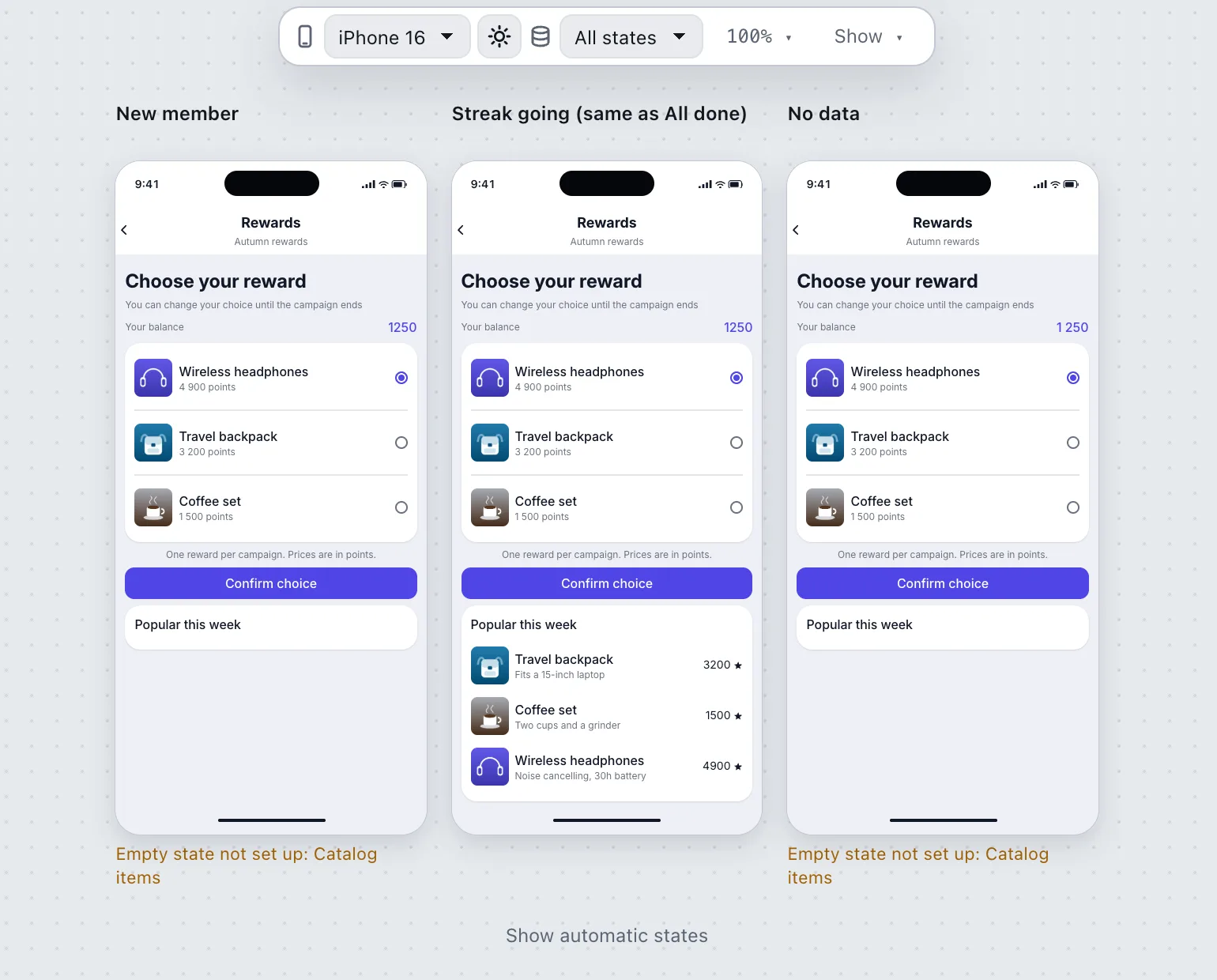
To see every state at once, choose All states in the Scenario list. The canvas then shows the same screen on several phones side by side, one per state: Sample data, No data, and every choice of each field that changes the screen, on top of the samples. Each phone is named with the same words as the scenario lists, shows the finished screen down to the first screen boundary, and leaves out states that look the same as one already shown. Up to eight phones fit; the rest are counted in a line under them that opens Configure values…. Click a phone to make its state the canvas scenario and return to one phone. When a list is empty in a state and nothing on the screen appears only then, the phone says so underneath: the empty state is not set up yet. Hidden at this width / in this scenario in the Show menu has no effect here.
Look at No data before publishing. It shows your empty-list messages and every fallback text.
Saved scenarios#
A scenario you have set up can be kept under a name: “New member”, “Streak goes on”, “Everything done”. A saved scenario belongs to the project, not to a document — every screen of every document in the project offers it in the Scenario list, and so does everyone on the team. It is a note for people who build and check screens: the phones in the app know nothing about it, and the documents do not change.
Save. Set the values you want in Configure values…, then press Save current as scenario… in the Saved scenarios block of that window (the same entry stands at the bottom of the Scenario list). Type a name — up to 60 characters, and the project must not already have one with that name — and press Save. A saved scenario is the starting point (Sample data or No data) plus the values you named; it is saved as it is, whatever screen you are on.
Choose. Saved scenarios stand in the Scenario list above the sample choices. Choose one and the canvas and the Preview tab show the screen with its values. A scenario that changes nothing on this screen is marked no change on this screen rather than hidden. Change a value afterwards and the list says changed, and the window shows a changed badge: Save changes writes the values over the scenario, Save as new scenario… keeps the original and adds another.
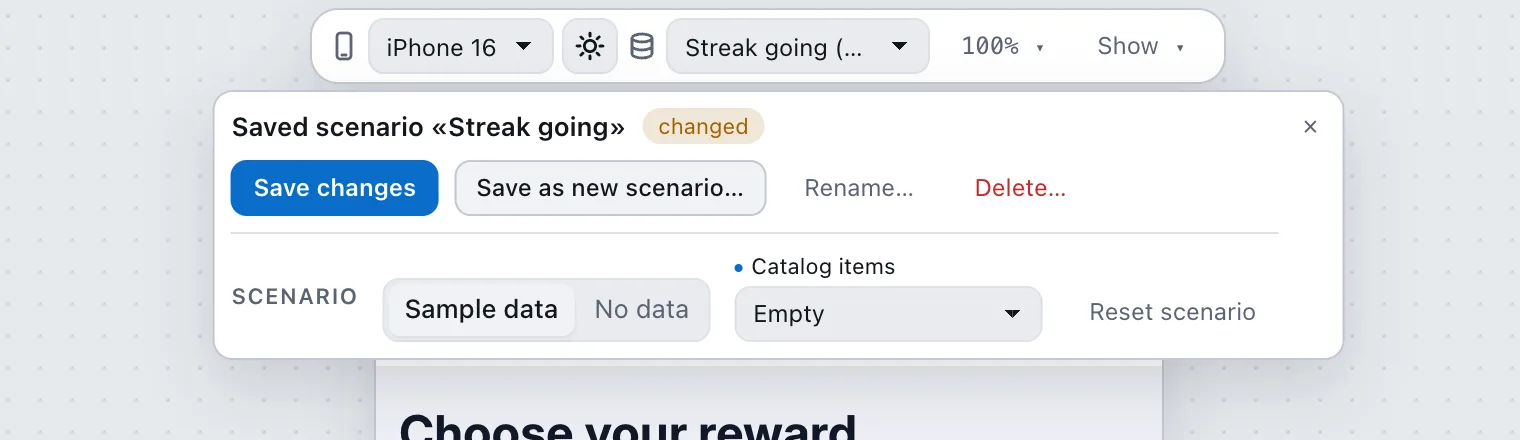
Rename and delete. With a scenario chosen, Rename… and Delete… stand in the same block. Deleting asks first: prototype links that use the scenario will open sample data afterwards.
A project holds at most 20 scenarios; at the limit the save button says so and stays off until you delete one. If a value of a scenario no longer fits the data dictionary — the field was renamed or removed — the window counts such values and Remove these values drops them. A scenario that cannot be read at all appears in the list as unavailable, with the reason in the window and a Delete button.
In All states. Once the project has saved scenarios, All states shows them and No data on the phones, each named under its phone; two scenarios that look the same on this screen share one phone. The remaining states are behind the line under the phones. Name the states your team cares about, and this becomes the list of what to check before every release.
Who can. Saving, renaming and deleting need the Editor role or higher (see Team and roles). A Viewer can only choose a scenario. If the storage refuses, the window says Not saved and the values stay on the screen. When the host application keeps no scenarios for the project, the list works anyway, but the window warns that they live only until the page is reloaded.
When a colleague changes the same scenario. If someone changed or deleted the scenario while you worked, you are told in words: for a change under your own edits the window shows what differs (the name, the number of values) and offers Take theirs or Keep mine; if it was deleted, Save mine as new saves your values as a new scenario, and Leave it deleted accepts the deletion. When you delete a scenario someone else just changed, you choose between Keep their version and Delete anyway. An unedited chosen scenario simply takes the colleague’s new values and says so; your unsaved edits are never overwritten.
The same scenarios can be sent in a link — see the prototype link.
The data dictionary#
The dictionary belongs to the project and is edited in the admin: open the project, go to Project settings, and under Data dictionary press Open the dictionary. Owners and admins can change it.
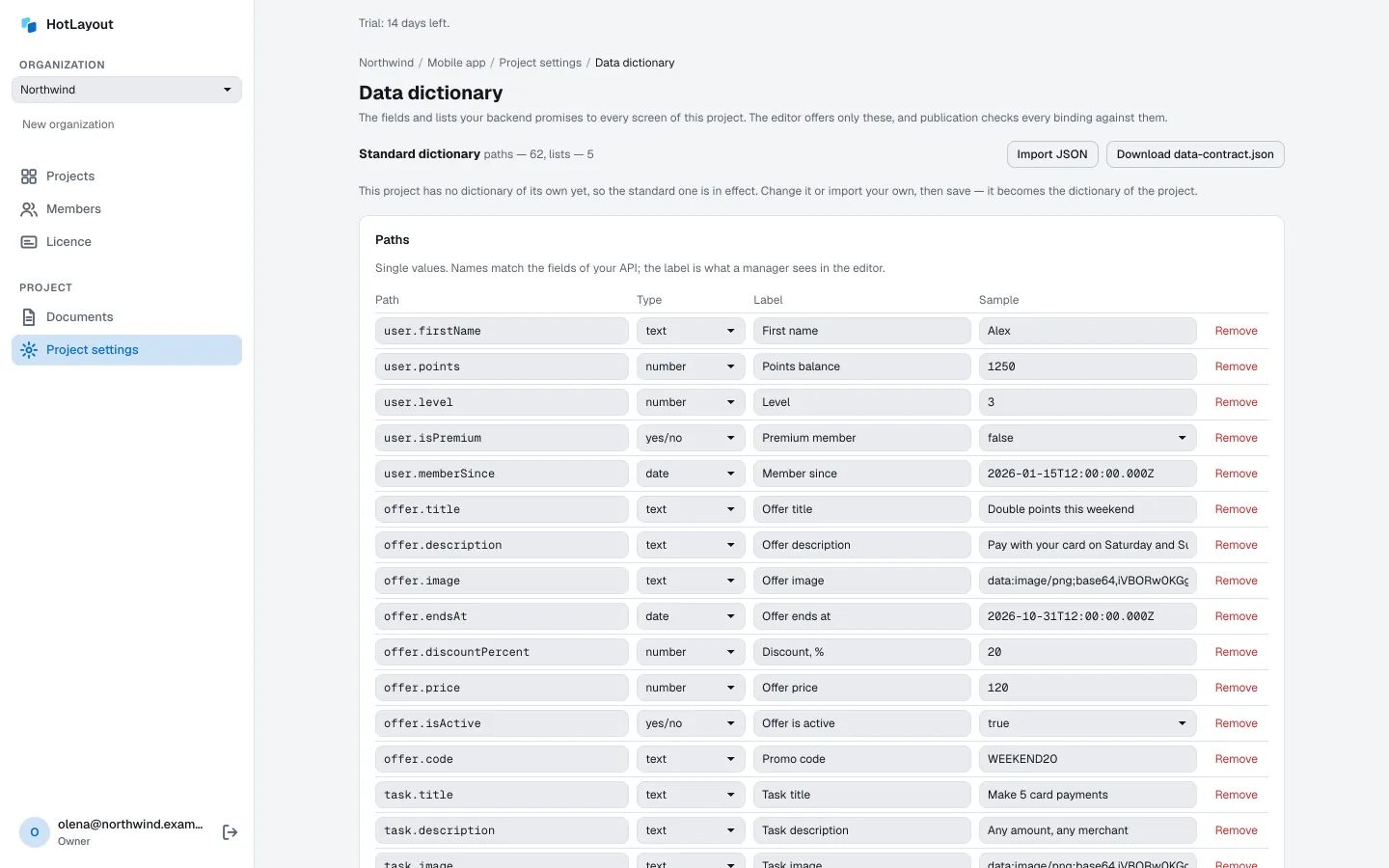
- Paths are single values. A path is
entity.field, for exampleuser.firstName. The label is what you see in the editor; the sample is what the canvas shows. - Lists give records of one entity: the list
tasksgivestaskrecords, whose fields are thetask.…paths.
Agree the dictionary with the developers of your backend: the names must match what the backend sends.
Fill it from a sample#
Instead of typing every path, press Import JSON and paste a sample of your backend response (or choose a dictionary file), then press Read. Types come from the values, samples are the values themselves, labels come from the field names. The page lists what was left out and why. Nothing is saved until you press Save the dictionary.
Lists whose records have the same fields and whose names end in the same word become one entity: missions, newMissions and doneMissions all give records named mission, and the entity is named after the shortest of the lists. The name of the entity stands in each list in the field Entity of a record. Change it there and press Enter or leave the field: every path of that entity is renamed with it, and lists that share the entity move together. If two lists with different fields end up under one entity name, the field shows the reason and Save the dictionary stays disabled until you give one of the lists another name.
What a change breaks#
When you save, HotLayout checks the documents of the project against the new dictionary. If a change would break bindings — a path was removed or its type changed — you see the affected documents and places before anything is saved, and choose Back to editing or Save anyway.
If a teammate saved the dictionary while you were editing, you choose between Open theirs and Save mine over it.
A document that is open in the editor takes the new dictionary when it is reopened.
Download data-contract.json downloads the dictionary as a file for your developers.