
Saving and publishing
Here you learn how your work is saved, how a screen gets to your apps, what to do when the Publish button is grey, and how to return to an earlier version.
Draft and published version#
Every document has two versions:
- The draft is what you edit. It is saved automatically and is visible only to your team.
- The published version is what the app shows. It changes only when someone presses Publish.
So you can work on a draft for days without changing anything for users.
Saving#
There is no save button. The editor shows one status at the top. While the draft is being saved, or could not be saved, that status is about saving; otherwise it is about publication, and the time of the last save is in its tooltip:
| Status | Meaning |
|---|---|
| Unsaved changes | You changed something; it is about to be saved. |
| Saving… | The draft is on its way to the storage. |
| Not saved | The draft did not reach the storage. The reason is written below; press Save now to retry, and do not close the tab until it is saved. |
When two people edit the same document#
HotLayout does not merge edits, and it does not let one person silently overwrite another. If a teammate saved the document after you opened it, your next change is not saved. A bar at the bottom explains it and offers two buttons:
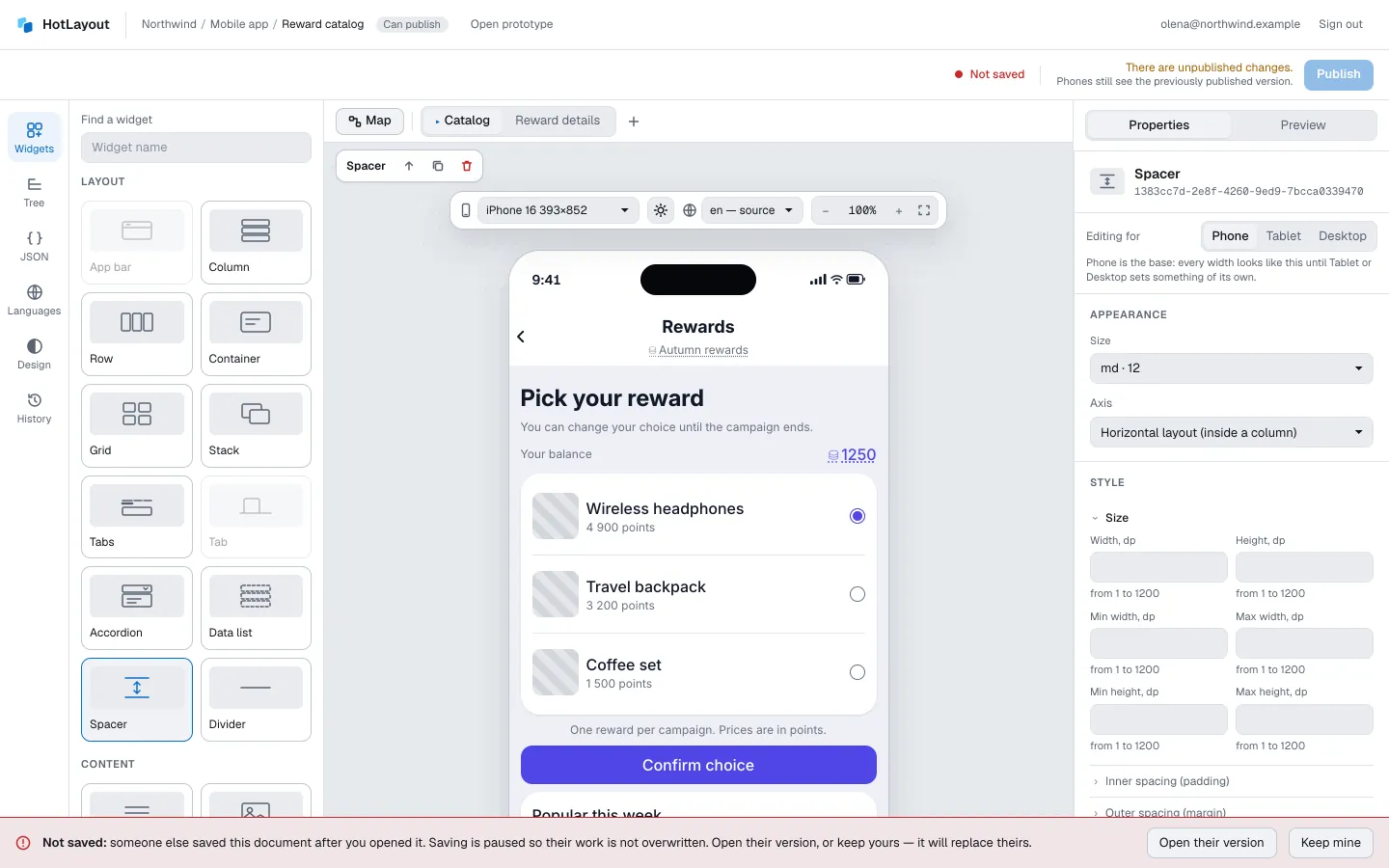
- Open their version — your screen is replaced with their version. Undo brings the choice back.
- Keep mine — your version is saved over theirs.
To avoid this, agree who works on a document, or split the work into separate documents.
Publish#
- Check the screen in the preview.
- Press Publish.
- A window asks you to confirm. Under What will change it lists what differs from the published version, and it says when and by whom the document was last published. Press Publish in the window to go ahead, or Cancel (or Esc) to go back; nothing is published until you confirm.
The status next to the button changes to the time of publication and Apps see this version. The app shows the new version the next time it loads the document; how soon depends on how your developers set that up.
When you edit after publishing, the status says There are unpublished changes. Apps still see the previously published version. Publish again when the changes are ready.
The same status is in the list of documents of the project, in the In apps column.
Why the Publish button is grey#
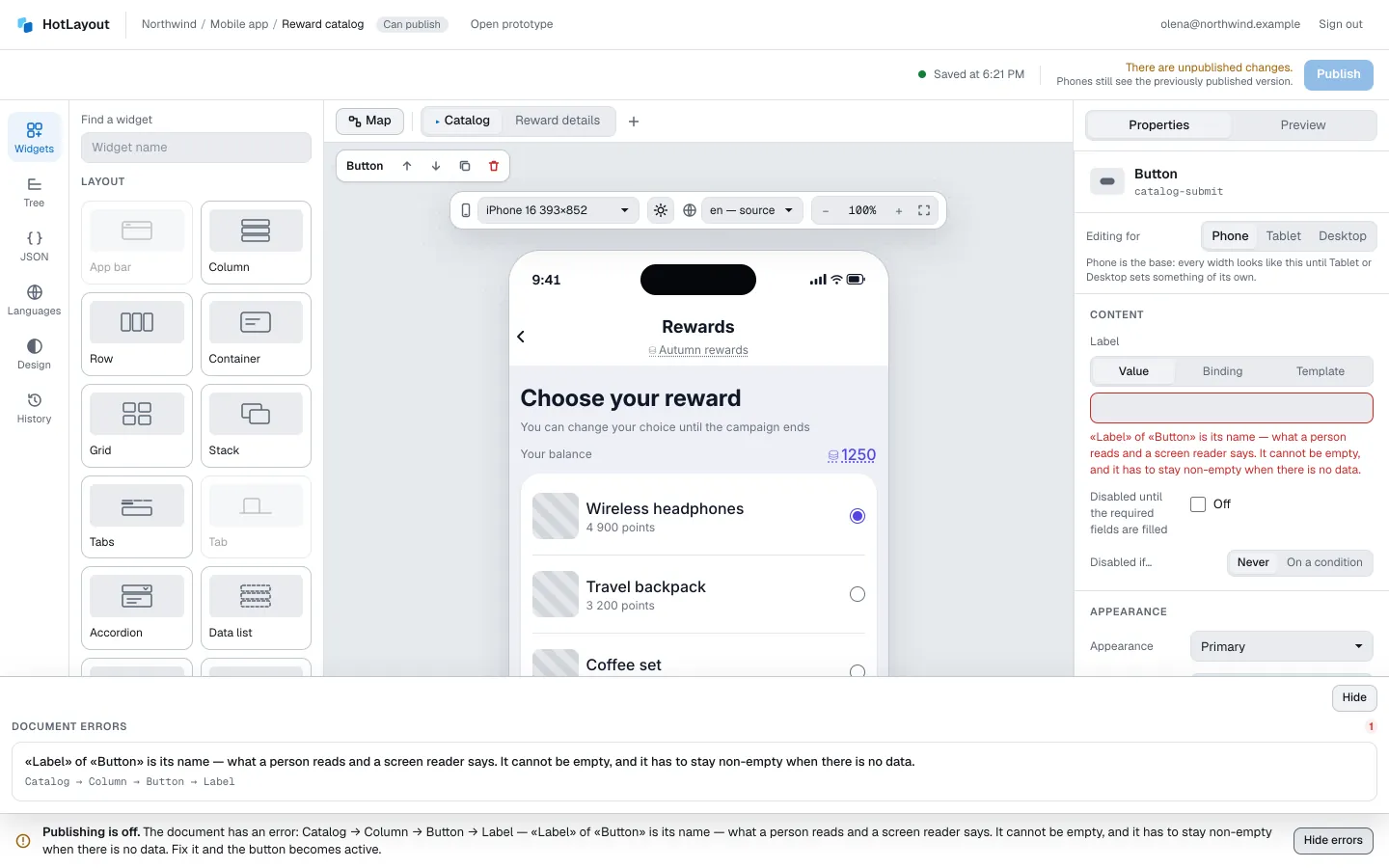
The reason is always written: next to the button, and as a bar at the bottom of the editor that starts with Publishing is off.
| Reason | What to do |
|---|---|
| The document has errors | Press Show errors in the bar. Each error names the screen, the widget and the field; click it to go there. Widgets with errors are also marked in the tree. Fix them and the button becomes active. |
| Your role does not publish | Ask an admin or a publisher of the organization to publish, or to change your role. See Team and roles. |
| The trial has ended or the licence has expired | Editing still works and drafts are saved. See Trial and licence. |
| The document uses theme tokens that apps do not have yet | Publish the theme first — Design, then Publish the theme — and then the document. |
| Someone else changed the document or the theme | Follow the message: open their version or reload the page, then publish. |
| Nothing has changed | There is nothing to publish — the draft matches what is published. |
Typical errors: a button without a label, a transition to a screen that was deleted, a binding to a field that is no longer in the data dictionary, a navigation bar on only some of the section screens.
Warnings in the preview — a text that does not fit, content below the first screen — are advice. They never block publishing.
If publishing itself fails, for example without a connection, nothing is sent to apps and the message says so. Press Publish again; publishing does not retry by itself.
History#
Every publication leaves a snapshot. Open History on the left.
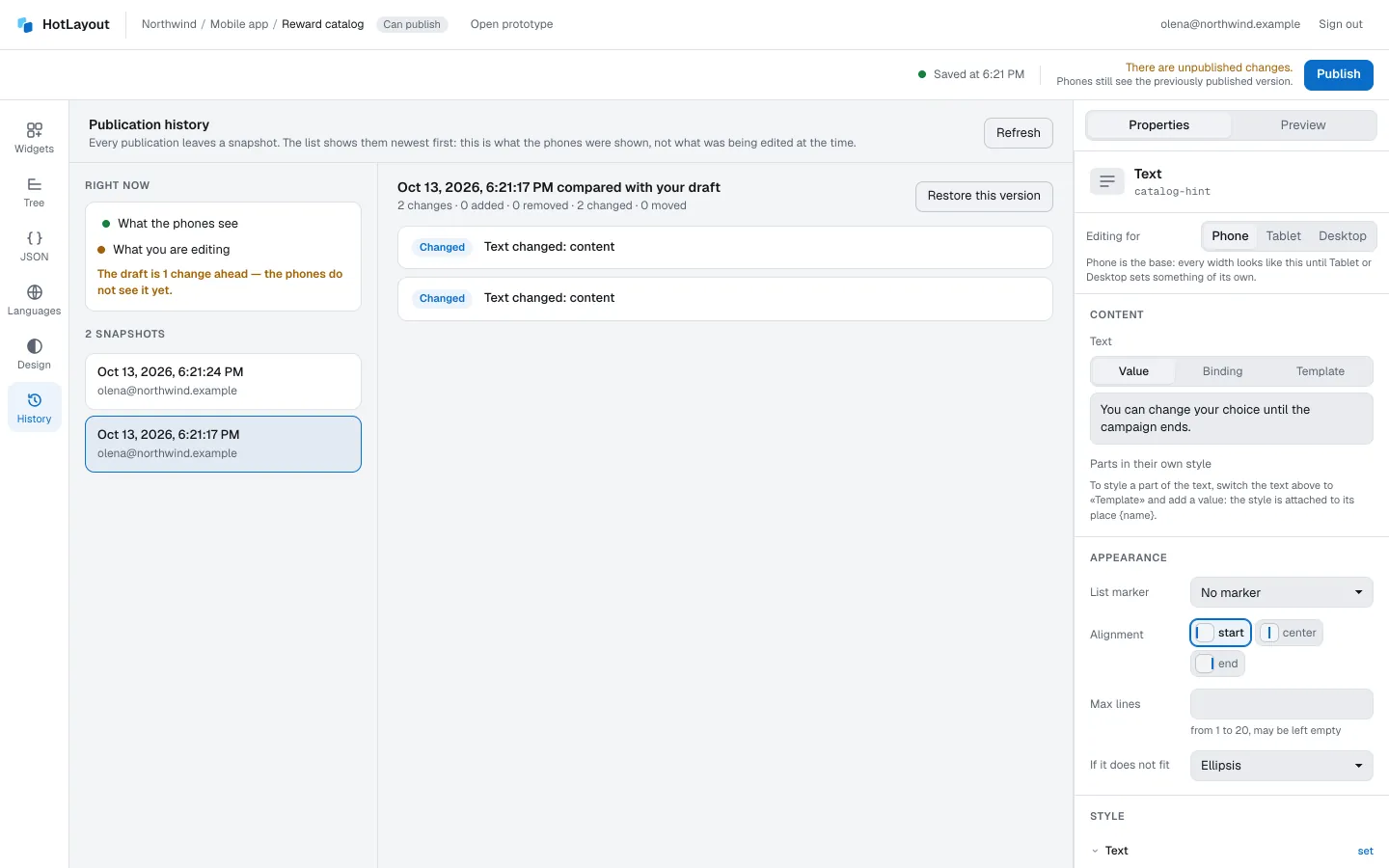
- Right now compares what apps see with what you are editing, and says how many changes the draft is ahead.
- Below is the list of snapshots, newest first, each with the time and the person who published.
- Click a snapshot to see how it differs from your draft. Changes are named by meaning — a widget added, moved or changed, a screen renamed — not as lines of code.
Return to an earlier version#
- Select the snapshot.
- Press Restore this version and confirm with Replace.
The version is put into your draft. Nothing changes in apps until you press Publish. If you change your mind, undo brings the previous draft back.
To drop your unpublished changes, use Discard the draft and take the published version.
Export and import#
The JSON section holds the document as a file:
- Copy JSON and the download button export it — for a backup or to hand it to a developer.
- Under Import, paste a document or choose a file and press Import. The imported content replaces the draft of the document you have open. If the file does not match the theme or the data dictionary of this project, it opens with remarks you fix in the editor.
The same section shows the full list of errors of the current document.